


iOS 27 is rolling out across Bharat during iPhone 18 Pro launch season, and new owners want quick wins on day one. How to Make a Sticker on iPhone is one of the fastest: you need only the Photos app and a few taps.
Important Insights
- Photo stickers work in the built-in Photos app, with no third-party app needed.
- Live Photos become animated stickers, and effects like Outline and Comic add style.
- Stickers sync through iCloud to your iPhone, iPad, Mac, and Apple Vision Pro.
Why are iPhone stickers trending right now?
Stickers are trending because millions of new iPhones are reaching hands in Bharat this festive season. Our analysis suggests personalization features are the first thing new owners try, right after moving their chats.
If you’ve been following the Apple ecosystem, this won’t come as a surprise. Read our latest post, Why MacRumors Is Changing Apple Ecosystem in 2026, for the full iPhone 18 launch picture.
How do you make a sticker on iPhone?
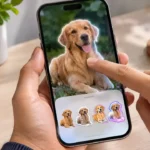
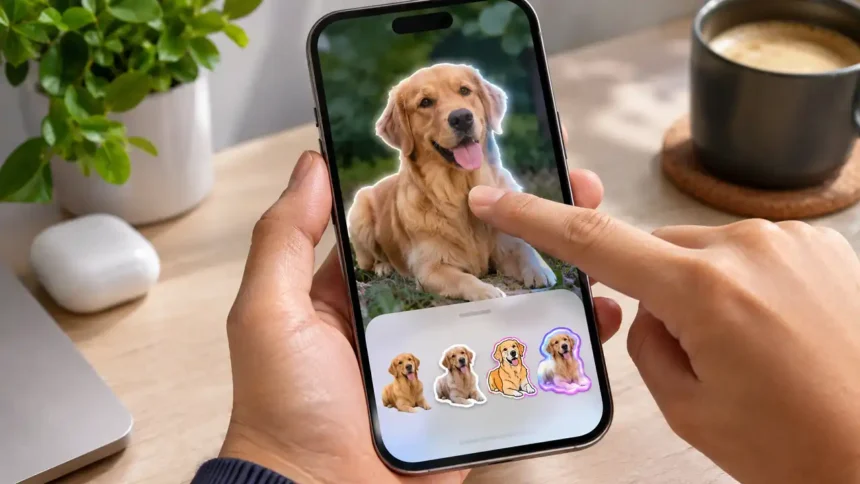
You make a sticker by lifting the main subject from any photo. We tested the flow from the official Apple Support iOS 27 guide, and it works the same on every supported model.
- Open the Photos app on your iPhone.
- Tap a photo to open it in full screen.
- Touch and hold the subject, then release.
- Tap Add Sticker to save it to your stickers menu.
- Tap Add Effect to apply a style or toggle Live Photo animation.
- Tap Close to exit the stickers menu.
CHECK ALSO: How to Block Tracking on Your iPhone for Better Privacy and Security
Which sticker effects can you choose?
Each effect changes how your sticker looks in a chat.
| Effect | What It Does | Best For |
|---|---|---|
| Original | Keeps the subject unchanged | Clean, natural cutouts |
| Outline | Adds a white border | Busy chat backgrounds |
| Comic | Applies a cartoon look | Fun replies |
| Puffy | Adds a raised, 3D feel | Pet and food photos |
| Shiny | Adds a reflective sheen | Festive greetings |
Which iOS versions support photo stickers?
iOS 17 introduced full photo stickers, and iOS 27 keeps the same simple flow.
| iOS Version | Sticker Capability | Status |
|---|---|---|
| iOS 16 | Lift subject, copy and paste only | No sticker drawer |
| iOS 17 | Photo stickers, Live Stickers, effects | First full release |
| iOS 18 | Same tools across Messages and Markup | Supported |
| iOS 26 | Same tools, iCloud sync | Supported |
| iOS 27 | Current Apple Support flow | Latest release |
Update through Settings > General > Software Update before you start.
CKECK ALSO: How to Block Tracking on iPhone
Which iPhone models can Bharat buyers get this season?
The 2026 lineup costs more in India, but every model supports stickers.
| Model | Estimated Bharat Price | Availability |
|---|---|---|
| iPhone 18 Pro | ~₹1,44,900 | September |
| iPhone 18 Pro Max | ~₹1,59,900 | September |
| iPhone Duo (256GB) | ~₹1,99,900 | Ships from October |
| iPhone 18 | Not announced | Q1 2027 |
Prices are our estimates based on last year’s US-to-India pricing gap. Owners of older phones should check our fix for green screen issues on iPhone 13 before upgrading.
CHECK ALSO: How to Fix WhatsApp Notifications Not Working on iPhone
Where can you use your stickers?
Your stickers appear anywhere the iPhone keyboard or Markup tools open.
| App | How You Add It | Indian Use Case |
|---|---|---|
| Messages | Emoji key > Stickers | Diwali greetings |
| Photos | Edit > Markup > Add | Decorating family shots |
| Notes | Markup tools | Study notes |
| Keyboard sticker menu | Festive office wishes |
Pair stickers with scheduled texts on iPhone to send greetings right at midnight. Learn more in Apple’s guide to sending stickers in Messages.
How do you delete a sticker?
You delete stickers from the Markup menu inside Photos.
- Open any photo, then tap Edit.
- Tap Markup, then tap the Add button.
- Tap Add Sticker, touch and hold a sticker, then tap Remove.
How to Ma ke a Sticker on iPhone: The iOS 27 Way Stickers are trending because millions of new iPhones are reaching hands in Bharat this festive season. Our analysis suggests personalization features are the first thing new owners #Apple #iPhone #iOS https://t.co/EXgY88RL4A
— Considering Apple (@consider_apple) November 27, 2026
What does this mean for Apple users in Bharat?
Stickers turn your photo library into a personal emoji pack.
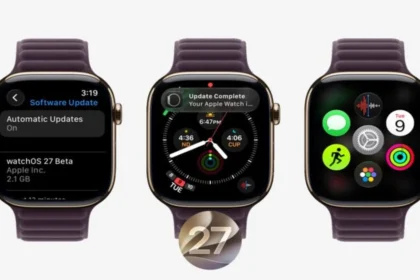
Industry insiders are noting that iCloud sync makes this feature stronger across devices, including the wrist, as our watchOS 27 feature breakdown shows.
Sync needs a stable connection, so use our guide to fix iPhone not connecting to Wi-Fi if stickers fail to appear. Open Photos now, pick your favorite festive shot, and tap Add Sticker.
Visit consideringapple.com for more stories.