



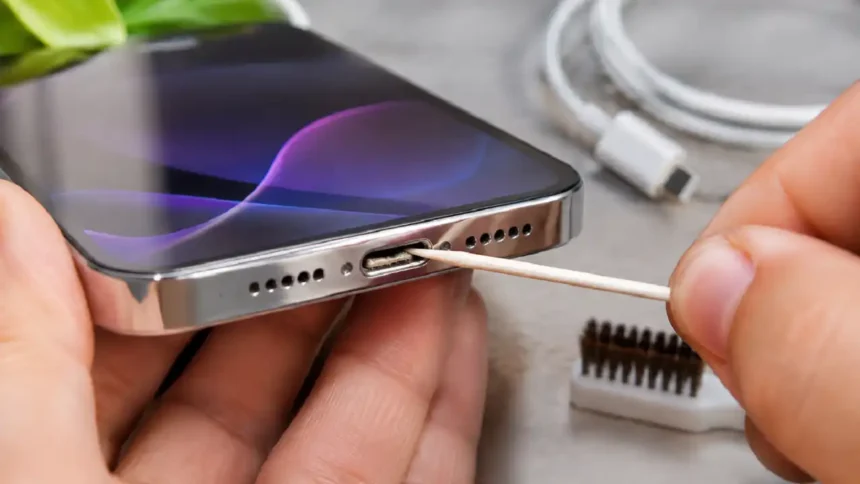
Festive sales and the iPhone 18 Pro launch are putting millions of new and older iPhones on Indian chargers this month. That makes How to Clean iPhone Charging Port a timely question, because a dirty port is one of the most common causes of slow or failed charging.
What You Need to Know
- Lint and dust inside the USB-C or Lightning port cause many of the charging failures we see.
- Apple warns against compressed air, liquids, and pushing objects like cotton swabs into the port.
- Most fixes are free, take under 5 minutes, and need only a flashlight and a soft cloth.
Why is port cleaning trending in Bharat right now?
Port cleaning is trending because more iPhones are in daily use across India. Apple’s September 2026 event introduced the iPhone 18 Pro and the foldable iPhone Duo, and festive demand is adding first-time buyers.
Our latest post, Why MacRumors Is Changing Apple Ecosystem in 2026, tracks how these launches shape upgrade plans in Bharat.
Many users also keep older models for years. We found that pocket lint, road dust, and monsoon humidity clog ports quickly in Indian conditions.
| Bharat Factor | Port Impact | Our Advice |
|---|---|---|
| Monsoon humidity | Moisture traps dust | Dry before charging |
| Dusty commutes | Grit builds inside the port | Inspect monthly |
| Older iPhones kept longer | Years of lint packed deep | Clean every 2 to 3 months |
| Festive upgrades | Old cables used on new phones | Use certified cables |
How to Clean iPhone Charging Port Without a Toothpick
What signs show your port needs cleaning?
A clogged port shows clear warning signs. Industry insiders are noting that people often blame the battery first, before checking the port.
| Symptom | Likely Cause | Quick Fix |
|---|---|---|
| Cable feels loose | Lint blocking the connector | Inspect and clean |
| Charging stops and starts | Debris breaking contact | Tap out dust |
| “Accessory not supported” | Dirty pins or a faulty cable | Try another cable |
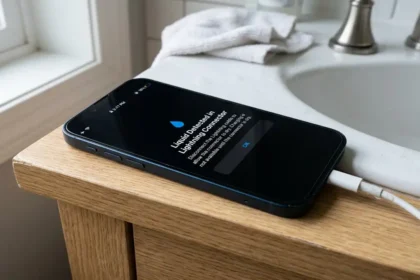
| Liquid detected alert | Moisture in the port | Let it dry for 5+ hours |
Liquid Detected iPhone Not Charging: What Is It and How To Fix It?
How do you clean an iPhone charging port step by step?
Follow this sequence, based on Apple’s handling and cleaning guide.
- Unplug every cable and accessory.
- Turn off your iPhone in Settings > General > Shut Down.
- Inspect the port with a flashlight to spot lint or grit.
- Tap the phone gently against your palm with the port facing down.
- Wipe the cable connector with a soft, dry, lint-free cloth.
- Test charging with a certified cable and adapter.
- Book a service check at an Apple Authorized Service Provider if the debris will not come out.
Our analysis suggests that steps 3 to 5 solve many common charging complaints.
Do AirTags Need Charging? No—Battery Swap Redefines Tracking
Which tools are safe, and which should you avoid?
The safest tools are the gentlest ones.
| Tool | Safe? | Why |
|---|---|---|
| Flashlight | Yes | Inspection only, no contact |
| Lint-free cloth | Yes | Apple-approved for connectors |
| Cool-air fan | Yes | Helps the port dry |
| Compressed air | No | Apple advises against it |
| Cotton swabs | No | Fibers stay behind |
| Pins or SIM tools | No | Can bend contacts |
| Cleaning liquids | No | Can damage the port |
What if your iPhone got wet?
Water is a separate problem from dust. Apple says you should wait at least 5 hours before charging a wet iPhone, and you should never dry it with heat. Apple’s water resistance article also explains that IP68 protection wears down over time.
What else should Bharat iPhone users check?
A clean port is one part of keeping your devices healthy. Set up call filtering with our guide on how to block a mobile number on iPhone.
If video calls fail, learn how to enable webcam on Safari iOS.
Mac owners can follow our steps on how to fix a slow boot Mac, and navigation users should read why Apple Maps criticism is peaking in India.
What does this mean for you?
Clean the port before you replace the battery. If you’ve been following the Apple ecosystem, this won’t come as a surprise: the simplest fix often costs nothing. Grab a flashlight tonight and inspect your charging port before you plan any festive upgrade.
Visit consideringapple.com for more stories.