

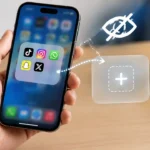





Festive gifting in Bharat, the iOS 27 rollout, and the iPhone 18 Pro launch have put new phones in millions of hands this September.
Many of those phones are shared with parents, siblings, or kids. That is why how to hide apps on iPhone has become a top privacy search this season.
The Biggest Takeaways
- Lock and Hide moves an app into a Face ID protected Hidden folder.
- Hidden apps stay out of Search and notifications, and their notification previews never appear.
- You can also hide apps from your App Store purchase list, which matters on Family Sharing accounts.
Why are so many people hiding apps right now?
Shared phones are driving the trend. Our analysis suggests festive season handovers, when an old iPhone goes to a family member, push users to check what others can see.
If you’ve been following the Apple ecosystem, this won’t come as a surprise. Interest in privacy on iPhone has climbed every month since the iPhone 18 Pro arrived.
| Search Query (Bharat) | Interest Level, Sept 2026 | Main Driver |
|---|---|---|
| hide apps on iPhone | Very High | New iPhone 18 setups |
| iPhone hidden folder | High | Finding hidden apps again |
| lock banking app iPhone | High | UPI and banking privacy |
| hide App Store purchases | Moderate | Family Sharing gifts |
Levels reflect our team’s relative review of search trends, not absolute volumes.
What are your options for hiding apps?
You have three built-in methods.
Each method gives a different level of privacy.
| Method | Steps | Availability in Bharat | iOS Required |
|---|---|---|---|
| Lock and Hide | Long-press app, then Require Face ID, then Hide | Yes, all models | iOS 18 or later |
| Remove from Home Screen | Long-press app, then Remove App, then Remove from Home Screen | Yes, all models | iOS 14 or later |
| Hide App Store Purchase | App Store, then Account, then Purchased, then swipe left, then Hide | Yes, all accounts | Any current iOS |
How do you lock and hide an app on iOS 27?
Lock and Hide is the strongest option. Apple Support confirms the app moves to a locked folder at the bottom of your App Library.
- Press and hold the app icon on your Home Screen.
- Tap Require Face ID (or Touch ID or Passcode).
- Select Hide and Require Face ID.
- Authenticate with your face, fingerprint, or passcode.
- Tap Hide App to confirm.
To find the app later, swipe to the App Library, scroll to the bottom, and open the Hidden folder.
Can you hide App Store downloads too?
Yes.
Apple’s purchase guide explains how to remove apps from your visible purchase list. This matters for Family Sharing, where relatives can see what you download.
What are the pros and cons?
Industry insiders are noting that hiding works best alongside other privacy tools.
Pros
- Hidden apps skip Search, Siri suggestions, and notifications.
- Face ID protects access every time.
- No third-party app is needed.
Cons
- Some built-in apps, such as Settings and Camera, cannot be hidden.
- You may miss urgent alerts from hidden banking or chat apps.
- The Hidden folder itself stays visible, though locked.
What should Bharat users do next?
Hiding one app is a start. We found the best results come from layering privacy settings.
| Next Step | Why It Helps |
|---|---|
| Block tracking on your iPhone | Stops apps from following you across services |
| Lock Notes on iPhone | Protects passwords and personal notes |
| Access Messages on iCloud | Keeps chats synced before you pass on an old phone |
| Review privacy on iPhone basics | Shows what others can and cannot see |
Latest from Considering Apple: How Do You Know If Someone Blocked Your Number on iPhone
Open your App Library today and lock the one app you would least want a family member to open.
Visit consideringapple.com for more stories.