



How Do I Identify The Carrier For A Sim-Locked Iphone 16?: How to Identify the Carrier for a SIM-Locked iPhone 16
→ How to Use Apple CarPlay in Your Hyundai: A Complete Setup Guide
Buying a used iPhone 16 or digging out an old one from a drawer raises an immediate question: is this phone locked, and if so, to which carrier? It matters more than most people realize. A SIM-locked iPhone 16 will refuse to connect on any network other than the one it was originally tied to, which can derail travel plans, block a carrier switch, or make a secondhand purchase feel like a waste of money. The good news is that identifying the carrier takes only a few minutes, and you have several reliable ways to do it.
Start with the iPhone’s Own Settings
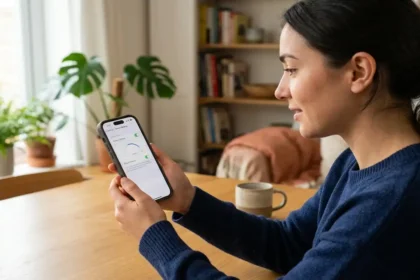
The simplest place to look is right inside the phone. Open Settings, tap General, then tap About. Scroll down until you see a field labeled “Carrier Lock.” If it reads “No SIM restrictions,” the phone is unlocked and can work with any carrier. If it shows a specific carrier name, that is the network the iPhone is tied to.
→ Bluetooth Not Connecting to Car? Here’s How to Actually Fix It
This method works best when you already have a SIM card inserted. Without one, the Carrier Lock field may not display as clearly, so pop in any active SIM before checking.
Use Apple’s Official IMEI Checker
Every iPhone carries a unique 15-digit IMEI number, and Apple’s systems use it to track carrier agreements. To find your IMEI, go to Settings > General > About and scroll to the IMEI field. You can also dial **\*#06# from the phone app and the number will appear on screen.
Once you have the IMEI, visit Apple’s official coverage checker at checkcoverage.apple.com. Enter the IMEI and your details, and Apple will return information about the device, including its activation status. While this page focuses on warranty coverage, it confirms the device’s registered carrier, which is usually the locked carrier.
For a more direct answer, Apple Support (reachable at apple.com/support or by calling 1-800-275-2273) can look up the carrier lock status using your IMEI. This is worth doing if the settings check leaves any ambiguity.
Try a Different Carrier’s SIM Card
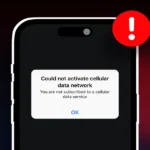
This is the most straightforward real-world test. Insert a SIM card from a carrier that is different from the one you suspect the iPhone is locked to. If the phone shows “No Service” or displays an error message like “SIM Not Supported” or “Invalid SIM,” it is locked to another network. If it connects and shows signal bars, the phone is either unlocked or happens to be locked to that second carrier.
Keep in mind that “No Service” alone is not conclusive proof of a lock. It could also mean the SIM is not activated or the account has an issue. The specific message “SIM Not Supported” is the clearest indicator of a carrier lock.
Check with the Carrier Directly
If you know or suspect which carrier the iPhone 16 was originally purchased from, contact that carrier’s customer support and provide the IMEI number. Major carriers including AT&T, Verizon, T-Mobile, and others maintain internal records of which devices are locked to their network and which have been unlocked. Most carriers have online unlock-status tools on their websites as well.
This approach is especially useful for secondhand purchases. The seller may claim the phone is unlocked, but a quick check with the carrier confirms it one way or the other before money changes hands.
Third-Party IMEI Lookup Services
Several reputable third-party services allow you to enter an iPhone’s IMEI and receive a report that includes carrier lock status, purchase country, and sometimes even the original carrier name. Sites like IMEI.info offer free basic lookups. Paid reports tend to be more detailed.
Use these services as a supplement rather than a primary source. They pull from databases that are not always updated in real time, so cross-check any result against Apple’s own tools or the carrier directly.
What to Do Once You Know the Carrier
Identifying the carrier is step one. If the iPhone 16 is locked and you want to use it on a different network, you will need to request an unlock from the original carrier. Most carriers will unlock a device once the associated contract or payment plan is fully paid off, and some will do it sooner under certain conditions. The request is usually made online through the carrier’s website or by calling support.
Once unlocked, the status updates automatically. You can confirm the change by going back to Settings > General > About** and checking that the Carrier Lock field now reads “No SIM restrictions.”
Knowing exactly which carrier holds the lock puts you in control of the process, whether you are switching networks, selling the device, or preparing for an international trip.
Relevant posts
- How to Clear RAM on Mac: Simple Ways to Speed Things Up
- Mac Screen Purple Lines: What’s Causing Them and How to Fix the Problem
- How to Book an Apple Genius Bar Appointment (And Actually Get the Slot You Want)
Visit consideringapple.com for more stories.