




How To Use Apple Carplay In Hyundai: How to Use Apple CarPlay in Your Hyundai: A Complete Setup Guide
→ Bluetooth Not Connecting to Car? Here’s How to Actually Fix It
Apple CarPlay has quietly become one of the most useful features in a modern car. Instead of fumbling with your phone while driving, you get your maps, music, messages, and calls projected onto your Hyundai’s touchscreen in a clean, familiar interface. The problem is that getting it set up for the first time is not always obvious, and a surprising number of Hyundai owners never quite get it working the way they want.
→ How to Clear RAM on Mac: Simple Ways to Speed Things Up
Whether you just picked up a new Sonata, Tucson, Santa Fe, or any other recent Hyundai model, this guide walks you through everything you need to know to get CarPlay running smoothly.
What You Need Before You Start
Before touching any settings, make sure you have the basics covered. You will need an iPhone 5 or later running iOS 7.1 at minimum, though realistically any iPhone you are using today will be well above that threshold. You also need a Lightning or USB-C cable if you plan to connect wired, and your Hyundai’s infotainment system needs to support CarPlay.
Most Hyundai vehicles manufactured from 2015 onward include CarPlay support, and models from around 2019 onward increasingly support the wireless version. If you are unsure whether your specific trim level includes it, check your owner’s manual or look up your model year on Hyundai’s official website at hyundaiusa.com.
One more thing: make sure CarPlay is enabled on your iPhone. Go to Settings, tap General, then CarPlay. If it has never been set up before, the list will be empty. That is completely normal at this stage.
Connecting via USB Cable
This is the most reliable method and the one to try first if you are setting up CarPlay for the first time.
- – Plug your Lightning or USB-C cable into your iPhone and connect the other end to the USB port in your Hyundai. Look for the port labeled with a smartphone icon or the word “CarPlay” rather than a charging-only port.
- – Your Hyundai’s screen should prompt you to allow CarPlay. Tap Allow on your iPhone if a permission popup appears.
- – The CarPlay interface will load on your infotainment display within a few seconds.
- – If nothing happens, try pressing the Home button on your Hyundai’s touchscreen or look for a CarPlay icon in the main menu.
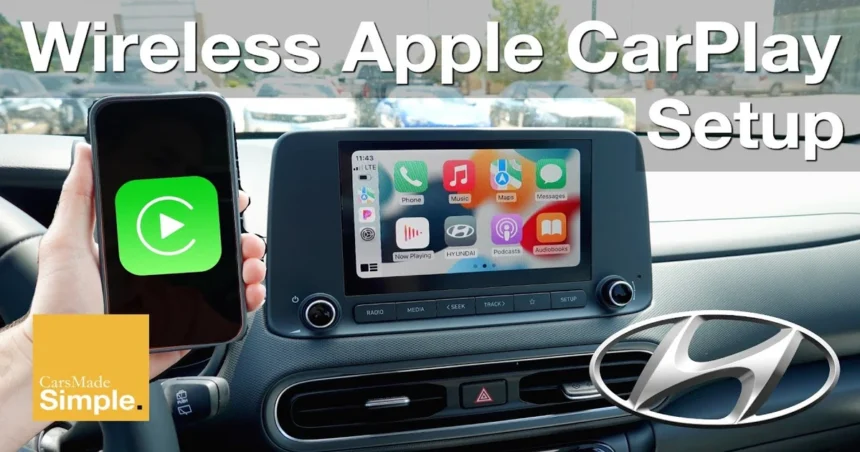
Once connected, your iPhone screen will dim and the CarPlay interface takes over your car’s display. You can use the touchscreen directly or control everything through Siri by holding the voice command button on your steering wheel.
Setting Up Wireless CarPlay
Wireless CarPlay is available on a growing number of Hyundai models, including recent versions of the Tucson, Santa Fe, Sonata, and Ioniq lineup. It cuts out the cable entirely and connects through Bluetooth and Wi-Fi simultaneously.
Here is how to pair it for the first time:
- – On your Hyundai’s infotainment screen, go to Settings, then look for Connections or Bluetooth.
- – Enable Bluetooth and make your phone discoverable.
- – On your iPhone, go to Settings, then Bluetooth, and select your Hyundai from the list of available devices.
- – Once the Bluetooth connection is established, your car may automatically prompt you to enable wireless CarPlay. Accept the prompt on both devices.
- – After the initial pairing, wireless CarPlay should connect automatically every time you start the car with your iPhone nearby.
If your Hyundai does not offer wireless CarPlay out of the box, some dealerships and third-party services offer retrofit solutions, though results vary by model.
Common Problems and How to Fix Them
CarPlay is not showing up at all. Start by confirming that the USB port you are using actually supports data transfer. Some ports in Hyundai vehicles are charge-only. Try a different port, and make sure you are using an Apple-certified cable rather than a cheap generic one.
The connection keeps dropping. This is usually a cable issue. Try a different cable first. If you are on wireless CarPlay and the connection is unstable, toggle Bluetooth off and on again on your iPhone, or forget the car in your Bluetooth settings and re-pair from scratch.
Siri is not responding. Check that Siri is enabled on your iPhone under Settings, then Siri and Search. Also confirm that “Allow Siri When Locked” is turned on, since CarPlay relies on it.
The CarPlay interface looks frozen or glitchy. A quick fix is to unplug and replug the cable, or restart your iPhone while it is connected. If the issue persists, try restarting your Hyundai’s infotainment system by holding the power button on the display for several seconds.
Getting the Most Out of CarPlay Once It Is Connected
Once CarPlay is running, it is worth spending a few minutes arranging the apps to suit how you actually drive. You can customize which apps appear on the CarPlay home screen directly from your iPhone. Go to Settings, then General, then CarPlay, tap your car’s name, and drag apps into the order you prefer.
For navigation, Apple Maps works natively, but Google Maps and Waze are also fully supported on CarPlay and can be set as your default navigation app. For music, Spotify, Apple Music, Podcasts, and most major audio apps all appear automatically once CarPlay is connected.
One habit worth building early: get comfortable using Siri through your steering wheel’s voice button. Asking Siri to send a message, play a specific album, or navigate to an address keeps your hands on the wheel and your eyes on the road, which is the whole point of CarPlay in the first place.
A Quick Note on Hyundai Software Updates
Hyundai periodically releases software updates for its infotainment systems that can improve CarPlay stability and add new features. If you are experiencing persistent connection issues, it is worth visiting your dealership or checking Hyundai’s website to see whether a software update is available for your specific model. Some updates can be downloaded over Wi-Fi directly through the car’s system, while others require a dealership visit.
Getting CarPlay working in your Hyundai takes maybe five minutes once you know the steps. After that, it becomes one of those features you will wonder how you ever drove without.
Relevant posts
- Mac Screen Purple Lines: What’s Causing Them and How to Fix the Problem
- How to Book an Apple Genius Bar Appointment (And Actually Get the Slot You Want)
- How to Change the Apple Maps Voice (And Make It Sound the Way You Want)
Visit consideringapple.com for more stories.