



Bluetooth Not Connecting to Car? Here’s How to Actually Fix It
→ How to Clear RAM on Mac: Simple Ways to Speed Things Up
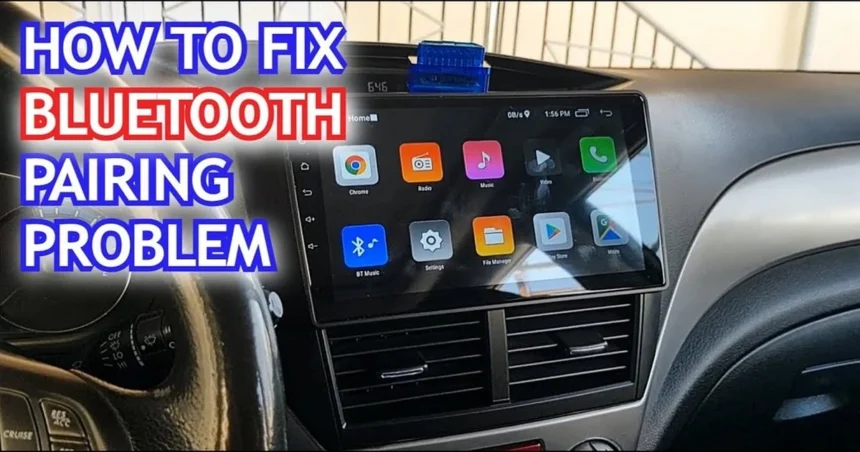
There are few things more frustrating than settling into your car, ready to play your playlist or take a hands-free call, only to watch your phone stubbornly refuse to connect. Bluetooth issues between phones and car audio systems are incredibly common, and the causes range from something embarrassingly simple to a slightly deeper settings conflict. The good news is that most problems are fixable in under five minutes, without a trip to the dealership.
→ Mac Screen Purple Lines: What’s Causing Them and How to Fix the Problem
This guide walks through the real reasons Bluetooth fails to connect and gives you clear, practical steps to sort it out.
Start With the Obvious (It’s Usually Here)
Before anything else, check that Bluetooth is actually turned on for both your phone and your car. It sounds too simple, but a quick toggle of airplane mode or a recent software update can silently switch Bluetooth off without you noticing.
Also confirm that your car’s infotainment system is in pairing mode or at least set to discoverable. Many systems time out after a minute or two of waiting, so the window closes faster than people expect. On most cars, you can find this under Settings or Bluetooth in the head unit menu.
One more quick check: make sure your phone isn’t connected to a different Bluetooth device, like wireless earbuds or a home speaker. Phones often latch onto the most recently used device and ignore everything else.
The Pairing History Is Often the Problem
Your phone and your car each keep a saved list of paired devices. When that saved connection becomes corrupted or outdated, usually after a software update on either end, the two devices think they know each other but can’t actually shake hands properly.
The fix here is to forget the connection on both sides and start fresh.
On your phone:
- – Go to Settings, then Bluetooth
- – Find your car’s name in the list of paired devices
- – Tap the info icon (on iPhone) or the gear/settings icon (on Android) and select “Forget” or “Unpair”
On your car:
- – Go into the Bluetooth settings on your infotainment screen
- – Find your phone in the saved devices list
- – Delete or forget it from there too
Once both sides have cleared the old pairing, put your car into pairing mode and reconnect from scratch. This resolves the issue far more often than people expect.
When a Restart Fixes Everything
If deleting and re-pairing doesn’t do it, restart both devices. Turn your car off completely, wait about 30 seconds, and start it again. On your phone, do a full power cycle rather than just locking the screen.
Bluetooth stacks on both phones and car systems can get stuck in odd states, especially if the connection dropped mid-use. A full restart clears whatever was hanging in the background.
Software Updates Can Break Things, and Fix Them
If your Bluetooth was working fine and then suddenly stopped after a phone update, the software change likely altered something in how your phone handles Bluetooth connections. The same can happen if your car received a firmware update.
Check whether your phone has any additional updates available, since manufacturers often push quick patches after a problematic release. For your car, check the manufacturer’s website or your dealership’s service app to see if a firmware update is available for the infotainment system. Some cars, particularly newer models from Ford, Toyota, BMW, and others, allow over-the-air updates that you can trigger directly from the settings menu.
The Phone Limit Issue Nobody Talks About
Most car Bluetooth systems have a maximum number of devices they can store, typically between five and ten. Once that limit is hit, the system may refuse to pair with new devices or behave unpredictably with existing ones.
Go into your car’s Bluetooth device list and delete any old phones, tablets, or other devices you no longer use. Clearing out that list gives the system room to breathe and often resolves connection failures that seemed completely random.
Interference and Range Problems
Bluetooth operates on the 2.4 GHz frequency, which it shares with Wi-Fi, microwaves, and other wireless devices. In dense urban areas or parking structures with heavy wireless traffic, interference can cause connection drops or failed pairing attempts.
If you’re having trouble in a specific location but the connection works fine elsewhere, interference is likely the culprit. There’s not much you can do about the environment itself, but making sure your phone is within a metre or two of the head unit during initial pairing helps establish a clean connection.
When Nothing Else Works
If you’ve tried everything above and Bluetooth still won’t connect, it’s worth testing your phone with a different car, and your car with a different phone. This tells you quickly whether the problem lives in the phone or the car system.
If the car fails to connect with multiple phones, a factory reset of the infotainment system may be necessary. This is usually found under Settings, then System, then Reset on most head units. Be aware it will wipe saved devices, presets, and sometimes navigation history.
For persistent issues on the car side, a dealership visit is worth it. Some infotainment systems have known Bluetooth bugs that were patched in later firmware versions, and a technician can apply those updates directly.
The Quickest Fix to Try Right Now
If your Bluetooth isn’t connecting at this moment, start here: turn Bluetooth off on your phone, wait ten seconds, turn it back on, and let your car search for it. If that doesn’t work, forget the pairing on both devices and reconnect from scratch. Those two steps alone solve the majority of Bluetooth connection problems people run into every day.
Relevant posts
- How to Book an Apple Genius Bar Appointment (And Actually Get the Slot You Want)
- How to Change the Apple Maps Voice (And Make It Sound the Way You Want)
- How to Change Your Apple ID Country or Region (Without Losing Your Stuff)
Visit consideringapple.com for more stories.