






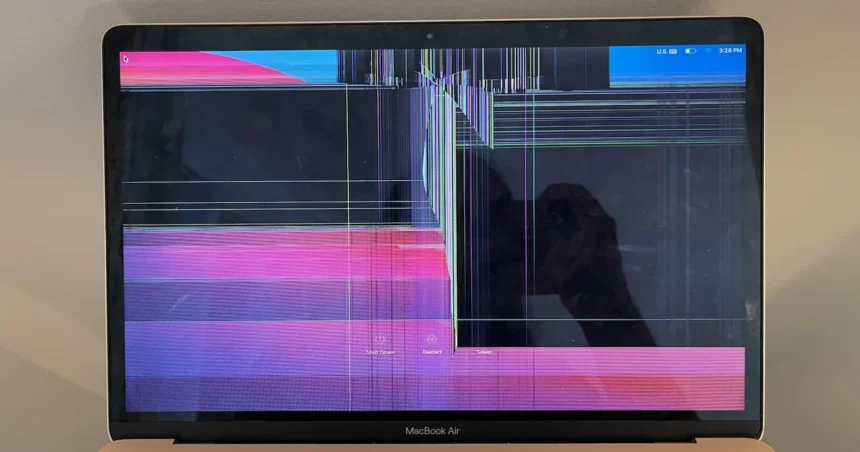
Mac Screen Purple Lines: Mac Screen Purple Lines: What’s Causing Them and How to Fix the Problem
→ How to Book an Apple Genius Bar Appointment (And Actually Get the Slot You Want)
Purple lines appearing on your Mac screen tend to arrive without warning, and the moment they do, your first instinct is probably to assume the worst. Before you start pricing out a replacement, take a breath. These lines can stem from a handful of different causes, some minor and some more serious, and working through them in order can save you a significant amount of time and money.
→ How to Change the Apple Maps Voice (And Make It Sound the Way You Want)
Here is what you need to know about why this happens and how to actually fix it.
What the purple lines are telling you
The appearance of purple lines on a Mac screen, whether vertical, horizontal, flickering, or static, is sometimes referred to as a “purple screen of death” when the discoloration spreads across the entire display. In partial cases, you might see a few lines cutting across the screen while the rest of the display looks normal. Either way, the root cause falls into one of two buckets: a software glitch affecting how your Mac handles graphics, or a hardware problem with the display itself or the components connected to it.
The distinction matters because software issues are almost always fixable at home. Hardware problems may require a repair or, in some cases, a professional assessment.
Start with the simplest fixes first
Before assuming anything is seriously wrong, run through the basics.
Restart your Mac. A graphics system glitch, particularly one triggered by a macOS update or a demanding application, can cause the display driver to behave erratically. A clean restart often clears this up entirely. If the lines disappear after rebooting and do not come back, the problem was almost certainly a temporary software hiccup.
Check for macOS updates. If the purple lines appeared shortly after a macOS update, Apple may have already issued a patch. Go to System Settings, click General, then Software Update, and install anything available.
Disconnect external displays and peripherals. If you are using an external monitor and that is where the lines appear, the issue may be with the cable, the adapter, or the display port rather than the Mac itself. Try a different cable or port before going further.
Dig deeper into software causes
If a restart did not solve it, there are a few more software-level steps worth trying.
Boot into Safe Mode. Safe Mode starts your Mac with only the essential software it needs to run, bypassing third-party extensions and login items. If the purple lines disappear in Safe Mode, a background application or extension is likely responsible.
To enter Safe Mode on an Intel Mac, restart and hold Shift until you see the login screen. On an Apple Silicon Mac, shut down completely, then hold the power button until startup options appear, select your disk, and hold Shift while clicking Continue in Safe Mode.
Reset the NVRAM or PRAM. On Intel Macs, the NVRAM stores display settings and can sometimes hold corrupted data that affects how the screen renders. Shut down your Mac, then press the power button and immediately hold Option, Command, P, and R together for about 20 seconds before releasing. Apple Silicon Macs handle this automatically, so the step only applies to Intel models.
Check your GPU settings. If your Mac has both integrated and discrete graphics, an app or setting forcing the wrong one can cause rendering issues. Under System Settings, search for Graphics Switching and make sure automatic switching is enabled.
When it is a hardware problem
If none of the software fixes work and the lines persist regardless of what you do, the issue is likely physical. Common hardware causes include:
- – A damaged or loose display cable inside the machine, which is particularly common on older MacBook Pro models that have been opened or dropped
- – A failing GPU or logic board, which is more serious and typically requires professional repair
- – Physical damage to the LCD panel itself, often from pressure, heat, or impact
- – A known manufacturing defect, which may be covered under an Apple repair program
It is worth checking Apple’s support page to see whether your specific Mac model is covered under any active repair or replacement program. Apple has issued extended repair programs for certain MacBook Pro models in the past that covered display-related issues at no cost.
What to do next
Run the Apple Diagnostics tool to get a clearer picture of whether the issue is hardware-related. On an Intel Mac, restart and hold D during startup. On Apple Silicon, hold the power button until startup options appear, then hold Command and D. The tool will flag any hardware faults it detects.
If the diagnostics point to a hardware issue, or if the lines are getting worse over time, book a Genius Bar appointment or contact an Apple Authorized Service Provider. Bring your Mac in with the lines visible if possible, since technicians will want to see the problem firsthand rather than rely on a description.
Purple lines on a Mac screen are frustrating, but they are rarely a sign that your machine is beyond saving. Work through the software fixes first, and you may resolve the problem in under ten minutes.
Relevant posts
- How to Change Your Apple ID Country or Region (Without Losing Your Stuff)
- iPhone XS Max IMEI Number: How to Find It, Check It, and Why It Matters
- White Dot on Your iPhone Screen? Here’s What It Actually Means and How to Fix It
Visit consideringapple.com for more stories.