





Airdrop Not Working When Set To ‘Contacts Only’: AirDrop Not Working on ‘Contacts Only’? Here’s How to Actually Fix It
→ How to Identify the Carrier for a SIM-Locked iPhone 16
If you’ve ever switched AirDrop to “Contacts Only” and watched it completely fail to find the person standing right next to you, you’re not alone. This is one of the more frustrating Apple quirks because the setting sounds simple, but a surprising number of things have to go right at once for it to work. The good news is that most of the causes are fixable in a few minutes.
→ How to Use Apple CarPlay in Your Hyundai: A Complete Setup Guide
Here’s what’s actually going on and how to sort it out.
Why ‘Contacts Only’ is more complicated than it looks
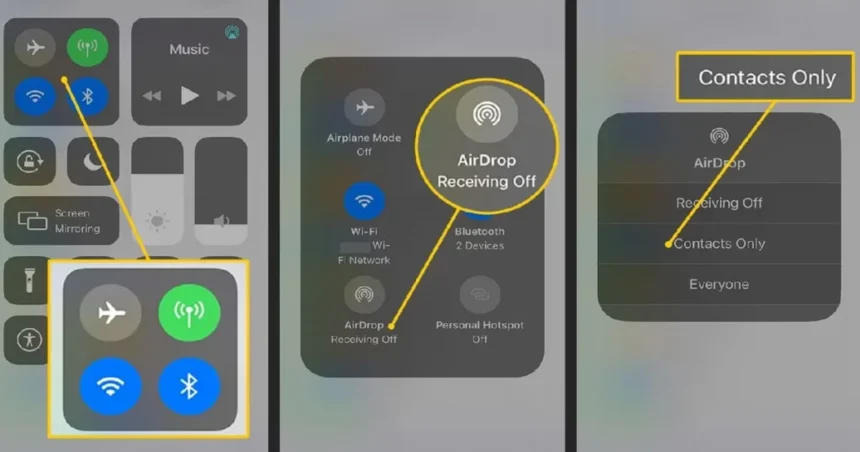
When you set AirDrop to “Everyone,” your device broadcasts itself to any nearby Apple device, no questions asked. “Contacts Only” is different. Your device checks whether the person nearby has an Apple ID email address or phone number that matches an entry in your contacts app. If that match fails for any reason, AirDrop won’t show them at all.
That means the feature depends on three things working in sync: your contacts being up to date, iCloud being signed in correctly, and both devices having Wi-Fi and Bluetooth active. When any one of those breaks down, AirDrop quietly stops finding people and gives you no explanation.
Start with the basics
Before going deep into settings, run through these first. They fix the problem more often than you’d expect.
- – Toggle Bluetooth and Wi-Fi off and back on. AirDrop uses both, and either can get stuck without showing an obvious error. Go to Settings, not just Control Center, since Control Center toggles can disconnect without fully resetting the connection.
- – Check that both devices are unlocked and have their screens on. AirDrop won’t respond when a screen is locked or in sleep mode.
- – Make sure neither device is in Airplane Mode. This one gets overlooked more than it should.
- – Disable Personal Hotspot if it’s active. An active hotspot on either device blocks AirDrop from working entirely.
The contacts sync issue most people miss
This is where a lot of “Contacts Only” failures actually live. For the feature to recognize someone, their Apple ID has to match the contact card you have saved for them. If they signed up with a different email than the one you have stored, or if their phone number isn’t in your contacts, the check fails and they stay invisible.
Open your Contacts app and confirm you have the right email address or phone number for the person you’re trying to reach. If you’re not sure which Apple ID they use, ask them to check under Settings, then their name at the top of the screen.
Also make sure iCloud Contacts sync is turned on. Go to Settings, tap your name, then iCloud, and check that Contacts is toggled on. If it’s off, your device may be working from an outdated or incomplete list.
Sign out of iCloud and back in
If the contacts look correct but AirDrop still won’t recognize anyone, the underlying Apple ID authentication can sometimes get stuck. Signing out of iCloud and signing back in refreshes that link.
Go to Settings, tap your name, scroll to the bottom, and tap Sign Out. After signing back in, give it a minute before testing AirDrop again.
Reset network settings
When Wi-Fi or Bluetooth connections are behaving strangely at a deeper level, resetting network settings clears out whatever is causing the interference. Go to Settings, then General, then Transfer or Reset iPhone, then Reset, and choose Reset Network Settings. You’ll need to reconnect to your Wi-Fi network afterward, so have the password ready.
Update your software
Apple has patched AirDrop behavior across several iOS updates. Running an older version, especially anything below iOS 16, can mean you’re dealing with a bug that’s already been fixed. Go to Settings, then General, then Software Update, and install anything pending.
If nothing else works, switch to ‘Everyone’ temporarily
This isn’t a permanent fix, but it’s a useful test. If AirDrop works on “Everyone” but not “Contacts Only,” the problem is almost certainly the contacts matching process rather than a hardware or connectivity issue. That narrows it down to the Apple ID email mismatch or the iCloud sync problem described above.
Apple does limit the “Everyone” setting on newer iPhones to a 10-minute window for security reasons, so it’s not a long-term workaround. But it tells you exactly where to focus your troubleshooting.
A quick checklist before you give up
- – Both devices unlocked and screens on
- – Wi-Fi and Bluetooth on for both
- – Personal Hotspot off on both
- – iCloud signed in and Contacts sync enabled
- – Correct Apple ID email or phone number saved in contacts
- – Both devices running a current iOS version
- – Neither device in Airplane Mode
Most people who work through that list find their issue somewhere in the middle of it. The “Contacts Only” setting isn’t broken by design, it just has more moving parts than it appears to. Get those parts aligned and it works exactly as it should.
Relevant posts
- Bluetooth Not Connecting to Car? Here’s How to Actually Fix It
- How to Clear RAM on Mac: Simple Ways to Speed Things Up
- Mac Screen Purple Lines: What’s Causing Them and How to Fix the Problem
Visit consideringapple.com for more stories.