





How To Change Apple Id Country: How to Change Your Apple ID Country or Region (Without Losing Your Stuff)
→ iPhone XS Max IMEI Number: How to Find It, Check It, and Why It Matters
Moving to a new country, chasing an app that’s not available in your local store, or simply wanting access to a different region’s content — there are plenty of good reasons to change your Apple ID country. The process is doable, but Apple puts a few gates in your way before it lets you through. Skip those steps and the switch will fail, or worse, you could lose your account balance and subscriptions.
→ White Dot on Your iPhone Screen? Here’s What It Actually Means and How to Fix It
Here’s exactly what you need to know before and during the process.
What actually changes when you switch regions
Changing your Apple ID country is more than a label update. Apple ties your entire digital storefront to your region, so when you switch, your App Store library shifts to the new country’s catalog, your payment currency changes, and your access to services like Apple TV+ or Apple Arcade will reflect what’s available in that region.
Apps you’ve already downloaded generally stay on your device, but you may not receive updates for apps that aren’t available in your new region. Any store credit you have won’t carry over either, so it’s worth spending it down first.
Before you change anything, do these things
Apple will block the switch if your account isn’t in a clean state. Work through this checklist first.
- – Cancel active subscriptions. Apple Music, Apple TV+, iCloud+, Apple Arcade, and any other recurring subscriptions must be cancelled or allowed to expire before the region change will go through. You don’t have to lose the service permanently, you just need to re-subscribe under your new region after the switch.
- – Spend your Apple ID balance. Any remaining store credit must be at zero. Apple won’t let you carry a balance from one country to another.
- – Return or finish any active rentals. Movie rentals expire on their own, but you can’t change your region while one is in progress.
- – Have a valid payment method for the new country ready. Apple will ask you to add a payment method that matches the new region, such as a local credit card or debit card. If you don’t have one yet, some regions do allow you to select “None” during setup, though this limits what you can purchase.
How to change your Apple ID country on iPhone or iPad
Once your account is clear, the steps are straightforward.
1. Open Settings on your iPhone or iPad.
2. Tap your name at the top to open your Apple ID settings.
3. Tap Media & Purchases, then select View Account. You may be asked to sign in.
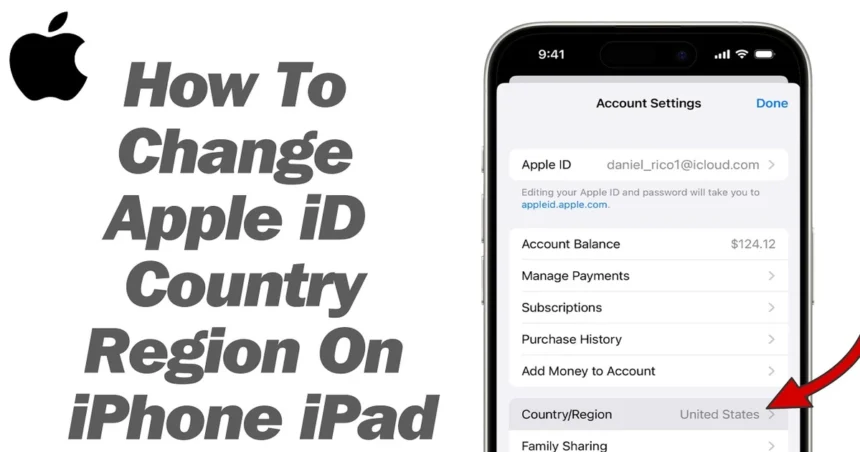
4. Tap Country/Region.
5. Tap Change Country or Region.
6. Select your new country from the list.
7. Review the Terms and Conditions and tap Agree.
8. Enter your new payment information and billing address, then tap Next.
Your region will update immediately after you complete those steps.
How to change it on a Mac
The process on Mac runs through the App Store rather than System Settings.
1. Open the App Store.
2. Click your name or profile icon at the bottom of the sidebar.
3. Click View Information at the top of the page.
4. Scroll down to Country/Region and click Change Country or Region.
5. Select your new country, agree to the terms, and enter your payment details.
How to do it through a browser
If you’d rather handle it on a computer without using the App Store app, you can go to appleid.apple.com, sign in, and look for the country or region option under your account details. The same pre-conditions apply regardless of where you make the change.
A few things worth knowing after you switch
Once the region change goes through, give your device a moment to refresh. The App Store will reload with the new country’s catalog, and your payment method will now be billed in the local currency.
If you had subscriptions that you cancelled before switching, you can re-subscribe to them through the App Store in your new region. Pricing will reflect the new country’s rates, which can be higher or lower depending on where you’ve moved.
Family Sharing adds a layer of complexity. If you’re the family organizer, switching your region moves the whole group’s shared purchases and subscriptions into the new region. It’s worth notifying family members before you make the change, since their access to shared apps or subscriptions could be affected during the transition.
Finally, if the switch doesn’t go through, the most common reason is an active subscription or a remaining store balance. Double-check both, and try again once everything is cleared out.
Relevant posts
- Fix iPhone Not Connecting to Wi-Fi
- How to Fix WhatsApp Notifications Not Working on iPhone
- iPhone Journaling Discoverable : What Is It and How to Disable It?
Visit consideringapple.com for more stories.