





Iphone 17E Esim Vanishes After Reboot When Physical Sim Is: iPhone 17e eSIM Disappears After Reboot When a Physical SIM Is Inserted — Here’s How to Fix It
→ AirDrop Not Working on ‘Contacts Only’? Here’s How to Actually Fix It
If you’ve slotted a physical SIM into your iPhone 17e and then watched your eSIM vanish after a restart, you’re not alone. This is one of those quietly frustrating bugs that doesn’t get much attention because it looks like a hardware problem when it’s almost entirely a software one. The good news is that it’s fixable. The bad news is that Apple hasn’t patched it cleanly yet, so you need to know exactly what’s happening before you can sort it out.
Why the eSIM disappears in the first place
When you insert a physical SIM into an iPhone that already has an eSIM active, iOS has to manage two cellular profiles at once. On the iPhone 17e, this dual-SIM state requires a specific activation handshake between the device and your carrier’s servers every time the phone restarts. If that handshake fails, iOS quietly drops the eSIM from the active profile list rather than throwing an obvious error.
→ How to Identify the Carrier for a SIM-Locked iPhone 16
The result looks like the eSIM was deleted, but it usually wasn’t. The profile is still stored on the device. What’s missing is the confirmed activation state, and iOS won’t display or use a profile it can’t verify as active.
This tends to happen more often when the physical SIM belongs to a different carrier than the eSIM. The phone has to register two separate networks on reboot, and if either carrier’s server is slow to respond, the eSIM loses the race and gets dropped from the UI.
Check before you do anything drastic
Before resetting network settings or calling your carrier, run through these steps in order. Most people fix this without going further than step three.
- – Go to Settings, then Cellular. If the eSIM line shows up but says “No Service” or “Disabled,” it’s still there. Tap it, then toggle the line on. Restart the phone and check again.
- – Check for a carrier settings update. Go to Settings, General, then About. If an update is available, a prompt will appear automatically. Install it, then restart.
- – Toggle Airplane Mode on and off. Hold it on for about 30 seconds before switching back. This forces the phone to re-register both SIMs with their respective networks simultaneously, which sometimes resolves the activation conflict.
- – Remove the physical SIM temporarily. Power the phone off, eject the SIM tray, power back on, and let the eSIM activate fully. Once you see signal and the eSIM line is confirmed active, power off again, reinsert the physical SIM, and restart.
That last step works more often than it should have to, which tells you something about how the iPhone 17e handles the dual-SIM boot sequence.
When the eSIM is genuinely missing from Settings
If you go to Settings, Cellular and there’s no eSIM line at all, not even a greyed-out one, the activation state was wiped rather than just suspended. This is a harder reset, but still recoverable.
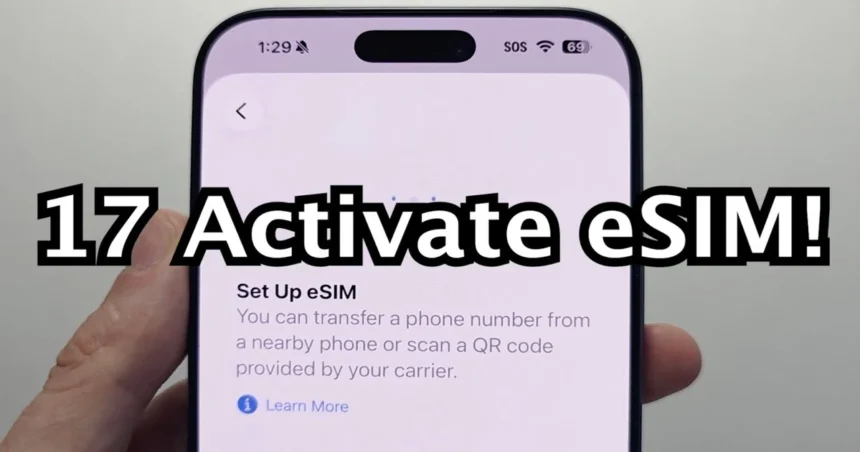
Reset Network Settings first. Go to Settings, General, Transfer or Reset iPhone, Reset, then Reset Network Settings. This clears saved Wi-Fi passwords and VPN configurations, so note those down beforehand. After the reset, go back to Settings, Cellular, and tap “Add eSIM.” Your carrier will either let you re-download the profile directly through the app or give you a QR code to scan.
If the eSIM was originally set up through your carrier’s app, log back in and look for a “Manage eSIM” or “Replace eSIM” option. Most major carriers including AT&T, T-Mobile, and Verizon allow you to re-provision the same number to the same device without a full account reset, as long as you’re doing it from the device itself.
The reboot loop problem
Some iPhone 17e users report that the eSIM comes back after following the steps above, but disappears again on the next reboot. This points to a conflict between the physical SIM’s carrier profile and the eSIM’s stored activation data.
The fix here involves setting the eSIM as the default line for cellular data and calls before restarting. Go to Settings, Cellular, and make sure the eSIM line is selected as the default. Then go to Cellular Data and confirm the eSIM is set there too. iPhones in dual-SIM mode sometimes deprioritize the eSIM on boot if the physical SIM’s network responds faster, and that deprioritization can cascade into the eSIM losing its active status entirely.
If the loop continues after that, contact your carrier directly and ask them to push a fresh eSIM profile to the device. This is different from re-downloading the existing one. A fresh push resets the activation record on the carrier’s end, which resolves conflicts that no amount of on-device troubleshooting can fix.
What Apple should do about this
The underlying issue is that iOS doesn’t handle dual-SIM boot conflicts gracefully. When two profiles compete for activation on startup and one fails, the OS should hold both in a pending state and retry, not silently discard one. Until Apple addresses this in a software update, the most reliable workaround is to make sure your iPhone 17e has a stable Wi-Fi connection during every restart when both SIMs are installed. That gives the activation handshake the best possible chance of completing before the OS makes any decisions about which profiles to keep active.
Relevant posts
- How to Use Apple CarPlay in Your Hyundai: A Complete Setup Guide
- Bluetooth Not Connecting to Car? Here’s How to Actually Fix It
- How to Clear RAM on Mac: Simple Ways to Speed Things Up
Visit consideringapple.com for more stories.