



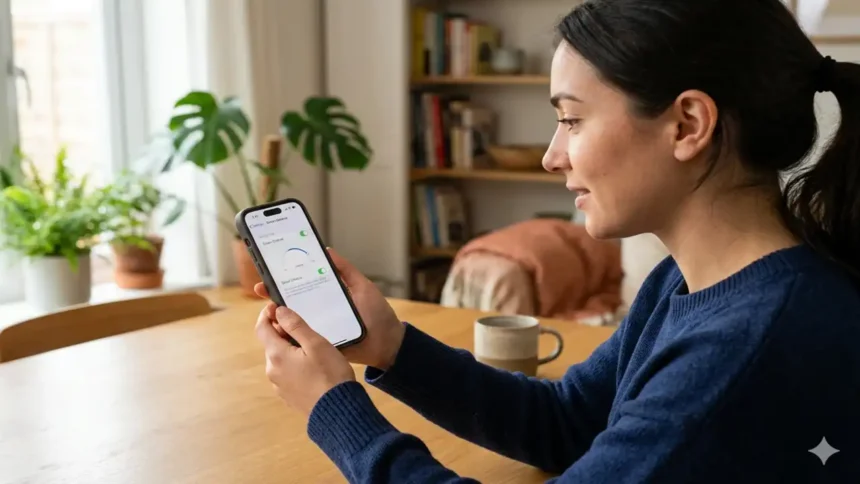
The latest iOS 17 update introduces an important new health feature called Screen Distance. Using Face ID and TrueDepth, Screen Distance measures how close your eyes are to the screen and alerts you when you’re holding your iPhone or iPad too closely for extended periods.
Here, I will tell you what Distance is, who can benefit from using it, how to enable it in your iOS settings, and how the feature works to encourage healthier viewing habits and reduce eye strain.
What is Screen Distance?
The Screen feature uses the TrueDepth camera and Face ID technology to measure the distance between the user’s eyes and the screen of their iPhone or iPad. It is designed to encourage healthy viewing habits and reduce eye strain by alerting users when they are holding their device too close (less than 12 inches) for an extended period of time.
Who Can Benefit from Screen Distance
While Distance is aimed primarily at protecting children’s vision health and reducing their risk of developing myopia (nearsightedness), it can also help adults avoid eye fatigue and irritation from overuse of digital devices held too closely. So both kids and adults can potentially benefit from using Distance.
How to Enable and Use the Screen Distance Feature in iOS 17https://t.co/CS7vPaf75A#ios17screendistance#ios17features#appletips#screentime#digitalwellbeing@AppleTV @theonlylouist91 @iPhoneist @iOSUpdates @techradar pic.twitter.com/QO8HEb2fmQ
— Considering Apple (@consider_apple) April 2, 2026
How to Enable Screen Distance
- Open the Settings app on your iPhone or iPad running iOS 17
- Tap on “Screen Time“
- Tap on “Screen Distance“
- Read the introductory screens and tap “Continue“
- Tap on “Turn On Screen” to enable the feature

How Screen Distance Works
Once enabled, your iPhone or iPad will periodically check the distance between your eyes and the screen using the TrueDepth camera.
How to Turn off Find my iPhone
If you are detected holding the device closer than 12 inches for an extended period:
- A message will appear saying “iPhone May Be Too Close“
- The screen will be covered by an alert
- You won’t be able to continue using the device until you move it farther away
iPhone 17 Pro Max Now Available At Lower Price
When you move the device beyond 12 inches, a check mark will appear allowing you to tap “Continue” and resume usage.
Conclusion
The Screen feature in iOS 17 provides a simple way to encourage healthier viewing habits and reduce eye strain. Both kids and adults can benefit. It is easy to enable in your Screen Time settings. Just remember to move your device farther away when you see the “Too Close” alert to avoid interruptions.