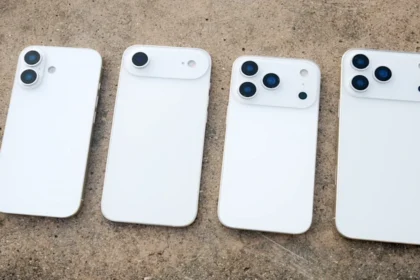






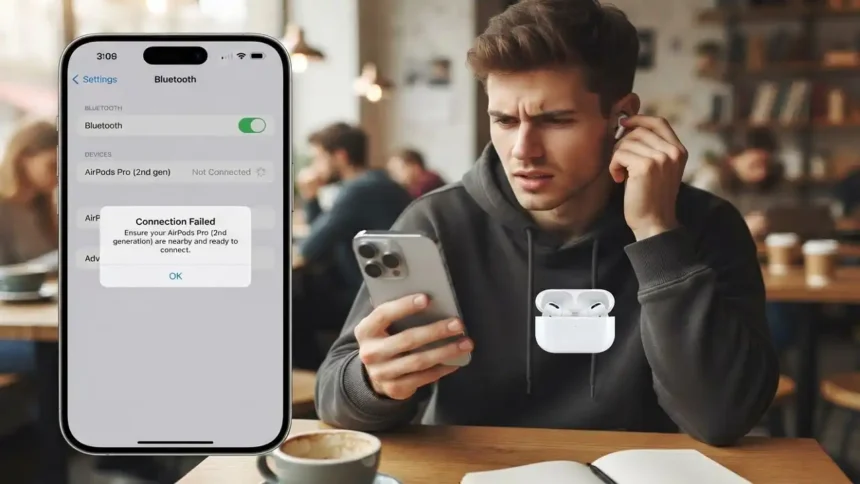
iPhone 17 Connection Issues with AirPods Pro 2: What’s Causing Them and How to Fix Them
→ Apple’s AirPods 4 Have Dropped to Their Lowest Ever Price
If you just upgraded to an iPhone 17 and your AirPods Pro 2 keep dropping out, refusing to connect, or switching between devices at the worst possible moments, you are not alone. Reports of pairing problems between Apple’s newest iPhone and the AirPods Pro 2 have been circulating since the iPhone 17 launched, and the frustration is real. The good news is that most of these issues have practical fixes, and a few of them take less than a minute.
→ The AirPods Max Condensation Defect Class Action Impact
Here is a clear look at what is going wrong and what you can actually do about it.
Why the iPhone 17 and AirPods Pro 2 Don’t Always Play Nicely
The iPhone 17 ships with iOS 18.x and introduces updated Bluetooth and Wi-Fi chip architecture. When a new iPhone generation rolls out, the software that manages device handoffs, automatic ear detection, and Adaptive Audio processing sometimes needs a few patch cycles to stabilize. The AirPods Pro 2, meanwhile, run their own firmware that Apple updates silently in the background, and if your AirPods firmware and your iPhone’s iOS version are even slightly out of sync, connection hiccups become much more common.
The most frequently reported problems include:
- – AirPods Pro 2 not appearing in Bluetooth settings after initial setup
- – Audio cutting out intermittently during calls or music playback
- – AirPods switching to a Mac or iPad instead of staying on the iPhone 17
- – One earbud connecting while the other stays silent
- – Significant lag between putting AirPods in and audio starting
These are not all caused by the same thing, which is why a single fix rarely solves everything. Working through them in order is the fastest approach.
Start With the Basics Before Assuming the Worst
Before anything else, check your software versions. Go to Settings > General > Software Update on your iPhone 17 and install any available iOS update. Apple has been pushing incremental fixes specifically for Bluetooth stability issues since the iPhone 17 launch.
For AirPods firmware, you cannot update it manually. Put your AirPods in their case, connect the case to power, and leave them near your iPhone for 20 to 30 minutes. Apple pushes firmware updates automatically during this window. To check your current firmware version, go to Settings > Bluetooth, tap the info icon next to your AirPods Pro 2, and scroll down to see the firmware number.
A simple restart of the iPhone 17 also clears a surprising number of temporary Bluetooth stack errors that accumulate over time.
The Reset and Re-Pair Fix
If basic steps do not help, a full reset of your AirPods Pro 2 is the most reliable next move. Here is how to do it:
1. Put both AirPods in the case and close the lid. Wait 30 seconds.
2. Open the lid and hold the setup button on the back of the case for about 15 seconds, until the status light flashes amber and then white.
3. On your iPhone 17, go to Settings > Bluetooth, find your AirPods Pro 2, tap the info icon, and select “Forget This Device.”
4. With the case lid open and the AirPods inside, hold the case near your iPhone. Follow the on-screen pairing prompt.
This wipes the existing pairing data and starts fresh, which resolves most cases of AirPods not appearing in Bluetooth settings or connecting inconsistently.
Stopping the Automatic Device-Switching Problem
One of the more annoying iPhone 17 behaviors is AirPods Pro 2 constantly jumping to a nearby Mac or iPad mid-use. Apple’s Automatic Switching feature is designed to be helpful, but the algorithm does not always read the situation correctly.
To dial this back, go to Settings > Bluetooth on your iPhone 17, tap the info icon next to your AirPods Pro 2, and find the “Connect to This iPhone” option. Change it from “Automatically” to “When Last Connected to This iPhone.” This tells your AirPods to stay put unless you manually switch them.
You will want to make the same change on your other Apple devices to stop them from competing for the connection.
When One Earbud Goes Silent
A single earbud not connecting usually points to a charge imbalance or a firmware sync issue between the two earbuds. Clean the charging contacts on both earbuds and inside the case with a dry cotton swab, then let them charge fully for at least an hour before testing again. If the problem persists after a full reset and re-pair, the issue may be hardware-related and worth a trip to an Apple Store or Genius Bar appointment.
If Nothing Works
For persistent issues that survive every software fix, Apple Support is the right call. You can reach them at support.apple.com or through the Apple Support app. Given that the iPhone 17 is still relatively new, Apple’s engineering team is actively collecting reports of Bluetooth-related bugs, and documenting your issue with them contributes to faster patch releases.
Most iPhone 17 and AirPods Pro 2 connection problems are software-driven and temporary. Keeping both devices updated and doing a clean re-pair resolves the issue for the majority of users. If you have been putting up with dropouts and disconnects since upgrading, working through these steps in order should get things back to working the way they should.
Relevant posts
- Badcaps AirPods: Why 2026 is the Year of Repair
- Do AirTags Need Charging? No—Battery Swap Redefines Tracking
- AirPods Pro 3 Being Recognized As Headphones iPhone iOS 18.7.1
Visit consideringapple.com for more stories.