






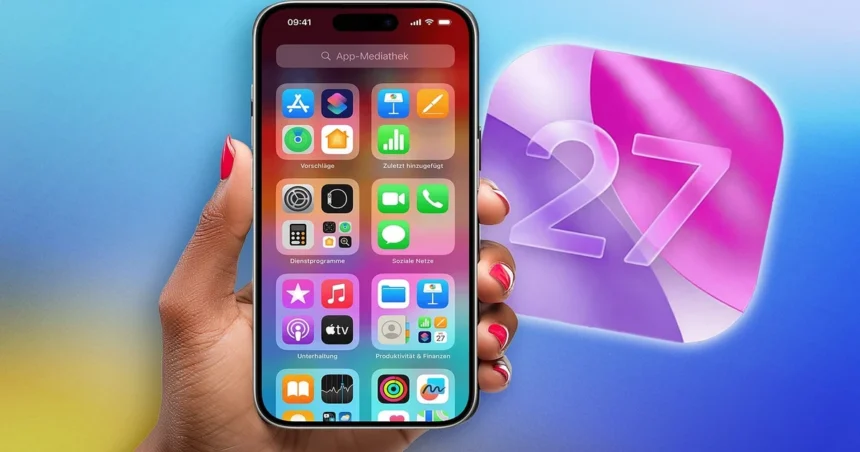
How to Get iOS 27 on iPhone 15: A Step-by-Step Guide
→ iOS 26 Update Stuck on “Update Requested”? Here’s How to Fix It
iOS 27 is officially out, and if you own an iPhone 15, you’re in luck. Apple released the update on September 14, 2026, following months of beta testing, and it brings a genuinely significant set of changes to the way your phone looks and works. Whether you’ve been waiting for the new Liquid Glass interface or just want the latest security and performance improvements, here’s everything you need to know to get iOS 27 on your iPhone 15.
What’s actually new in iOS 27
Before getting into the steps, it’s worth knowing what you’re downloading. iOS 27 isn’t a minor patch. The update overhauls the visual design with Apple’s Liquid Glass interface, and for the first time, you can adjust how intense the transparency effects are through a dedicated slider, which is a nice touch for people who found the look overwhelming. Icons have been refined, and there are new wallpaper options to go with the redesign.
→ Your iPhone 17 Pro Went Through the Wash — Here’s Exactly What to Do
On the practical side, app launch speeds are faster, and Spotlight and Mail search have both been improved. Apple Intelligence and Siri get new capabilities, including a dedicated Siri app. Photos, Messages, Mail, and Safari all received updates, and parents will find expanded Screen Time controls for managing children’s devices.
It’s a full-featured release, not just a maintenance update.
Check that your iPhone 15 is compatible
The iPhone 15 is fully supported by iOS 27, so you don’t need to worry about compatibility. This applies to all iPhone 15 models, including the standard iPhone 15, iPhone 15 Plus, iPhone 15 Pro, and iPhone 15 Pro Max. You can download and install the update without any restrictions.
How to install iOS 27 on your iPhone 15
The process is straightforward, but there are a couple of things worth doing before you start.
Back up your device first. Go to Settings, tap your name at the top, then select iCloud and iCloud Backup. Tap “Back Up Now” and let it finish. Alternatively, you can back up to a Mac or PC using Finder or iTunes. This step protects your data if anything goes wrong during the install.
Make sure you have enough battery and storage. Apple recommends at least 50 percent battery before updating. Plug in if you’re close to that line. For storage, the iOS 27 update file requires a few gigabytes of free space, so clear out old apps or photos if your storage is nearly full.
Once you’re ready, here’s how to update:
1. Open the Settings app on your iPhone 15.
2. Scroll down and tap General.
3. Tap Software Update.
4. Your iPhone will check for available updates. iOS 27 should appear here.
5. Tap Update Now (or Download and Install if it hasn’t downloaded yet).
6. Enter your passcode when prompted.
7. Agree to the terms and conditions.
8. Your iPhone will download the update, restart, and begin installing. This can take anywhere from 10 to 30 minutes depending on your connection speed and the device.
Leave your phone alone during the install. It will restart on its own and bring you back to the lock screen once iOS 27 is running.
If the update isn’t showing up
Sometimes iOS updates take a little while to appear for everyone, even after the official release time. Apple typically pushes updates out at around 10:00 a.m. PT, but server load on release day can slow things down. If you check Software Update and nothing appears, wait 20 to 30 minutes and try again.
You can also try going to Settings, General, and then Transfer or Reset iPhone, and tap “Reset Network Settings” if you’re having persistent connection issues. That said, most people just need to be patient on release day.
If your iPhone 15 is running a much older version of iOS, it may need to update in stages. Follow the prompts and let each update complete before checking for iOS 27 again.
A quicker alternative through your computer
If the over-the-air update is slow or keeps failing, you can update through a Mac or PC. Connect your iPhone 15 with a cable, open Finder on Mac (or iTunes on Windows), select your device, and click “Check for Update.” From there, click “Download and Update” and follow the on-screen steps. This method can be faster and more reliable when Apple’s servers are busy.
After the update
Once iOS 27 is installed, take a few minutes to explore the new settings. Head to Settings, Wallpaper to see the new options, and check Settings, Accessibility, Display and Text Size if you want to dial back the Liquid Glass transparency effects. The new Siri app will be on your home screen, and you can start exploring the expanded Apple Intelligence features from there.
The update is free, it’s available right now, and your iPhone 15 handles it without any issues. There’s no reason to wait.
Relevant posts
- iPhone 17 Pro Max Cellular Network Not Working After iOS 26.2 Update? Here’s How to Fix It
- iPhone 17e eSIM Disappears After Reboot When a Physical SIM Is Inserted — Here’s How to Fix It
- AirDrop Not Working on ‘Contacts Only’? Here’s How to Actually Fix It
Visit consideringapple.com for more stories.