




How To Fix ‘Device Unknown’ Error On Ipad Without Proof: How to Fix the “Device Unknown” Error on iPad Without Proof of Purchase
→ Pink Pointer Color Not Appearing in All Apps on MacBook Neo? Here’s How to Fix It
If you’ve picked up a second-hand iPad or reset your own device only to be greeted by a “Device Unknown” error, you know how frustrating it is to be locked out of something you own. The good news is that proof of purchase is rarely the actual barrier. The real issue is almost always one of a few specific technical problems, and most of them have practical fixes you can try right now.
→ How to Disable Writing Tools in iOS 18 (And What to Do If You’re on a Beta)
Here’s what’s actually happening and how to work through it step by step.
What the “Device Unknown” Error Actually Means
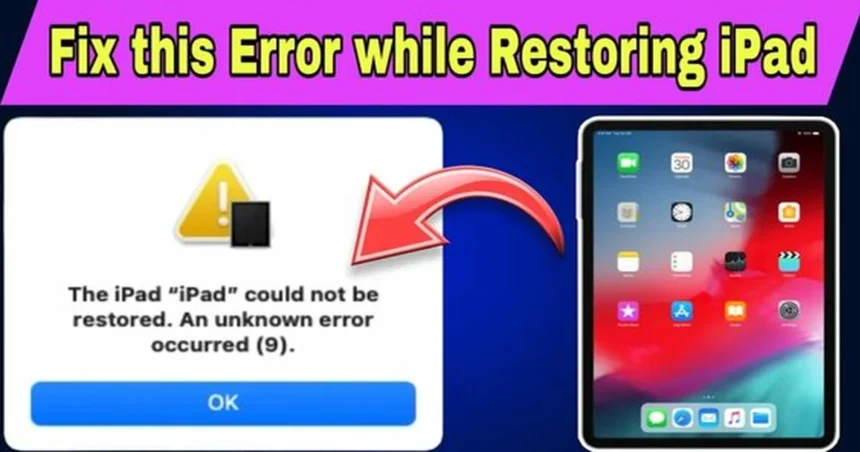
The “Device Unknown” error typically appears during the iPad’s activation process, either after a factory reset or when setting up a device for the first time. Apple’s servers need to verify your device before it can be used. When that verification fails or returns an unexpected response, the iPad displays this error rather than a more specific message.
The root causes usually fall into one of three buckets: a temporary Apple server issue, a network problem on your end, or Activation Lock tied to a previous owner’s Apple ID. Each one needs a different approach, so it’s worth running through them in order from simplest to most involved.
Start With the Basics Before Assuming the Worst
A surprising number of activation errors clear up with steps that take less than two minutes.
Restart the iPad. Hold the power button (and volume button on newer models without a home button) until the slider appears, then power it off and back on. This clears temporary software states that can interfere with activation.
Check your Wi-Fi connection. The iPad needs a stable internet connection to reach Apple’s activation servers. Switch to a different network if you can, or try toggling airplane mode on and off to force a fresh connection. Avoid public Wi-Fi networks with login portals, since those can interrupt the activation handshake.
Check Apple’s System Status page. Go to apple.com/support/systemstatus on another device and look at the status for “iTunes Store” and “Apple ID.” If those services show an outage, the error has nothing to do with your iPad specifically. Wait 15 to 30 minutes and try again.
Activate Through a Computer Instead
If the iPad itself can’t complete activation over Wi-Fi, routing the process through a Mac or PC often gets around the problem. This works because the computer handles the connection to Apple’s servers differently, which can bypass hiccups that trip up the iPad’s built-in activation flow.
On a Mac running macOS Catalina or later, open Finder, connect your iPad with a USB cable, and select your device from the sidebar. Follow the prompts to activate.
On a Mac running older macOS or a Windows PC, open iTunes, connect the iPad, and let iTunes detect it. If it doesn’t activate automatically, click “Set Up as New iPad” or “Restore” depending on what options appear.
Make sure your iTunes or macOS is fully up to date before trying this. An outdated version can cause its own activation failures.
The Harder Problem: Activation Lock
If you’re being asked to enter an Apple ID and password that you don’t know, the iPad is protected by Activation Lock. This is a security feature tied to the previous owner’s iCloud account, and it’s intentionally difficult to bypass.
Without proof of purchase, your options here are limited but not zero.
Contact the previous owner. This is the most reliable path. Ask them to log into icloud.com, go to Find My, select the device, and remove it from their account. Once they do that, the Activation Lock clears and the iPad can be set up normally.
Contact Apple Support directly. Apple can sometimes remove Activation Lock if you can provide enough information to establish ownership, such as the original receipt, a gift receipt, or documentation showing the device was purchased from an authorized retailer. Even without a receipt, Apple may ask for the serial number and other details. It’s worth making the call, since outcomes vary depending on the circumstances.
Check if the device was reported stolen. Before spending time on any fix, use the iPad’s serial number (found on the back of the device or the original packaging) to check it against Apple’s activation status at checkcoverage.apple.com. If the device is flagged as lost or stolen, no fix will unlock it, and you should not attempt to use it.
If the Error Persists After All of the Above
For software-related activation failures that don’t involve Activation Lock, putting the iPad into Recovery Mode is the next step.
Connect the iPad to your computer, open Finder or iTunes, then force restart the iPad while it’s connected. On iPads without a home button, quickly press and release volume up, then volume down, then hold the top button until the recovery mode screen appears. On iPads with a home button, hold the home button and top button together until the recovery screen appears.
From there, Finder or iTunes will offer to restore the device. Choose “Update” first, since this reinstalls the software without wiping data. If that doesn’t resolve the error, a full restore is the next option, though it will erase the iPad.
A Realistic Expectation Going In
Most “Device Unknown” errors that aren’t tied to Activation Lock resolve with a restart, a better network connection, or activation through a computer. The Activation Lock situation is genuinely harder without the previous owner’s cooperation, and no software trick reliably bypasses it on modern iPads.
If you’re buying a second-hand iPad, always ask the seller to remove the device from their Apple ID before the sale completes. That one step prevents almost every activation headache covered here.
Relevant posts
- How to Get iOS 27 on iPhone 15: A Step-by-Step Guide
- iOS 26 Update Stuck on “Update Requested”? Here’s How to Fix It
- Your iPhone 17 Pro Went Through the Wash — Here’s Exactly What to Do
Visit consideringapple.com for more stories.