




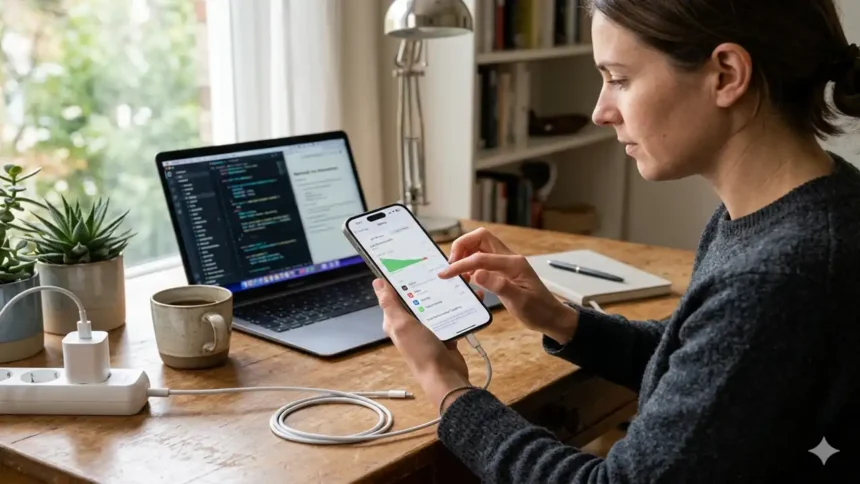
The advent of iOS 17.2.1 brought with it a host of new features and improvements, but for some users, it also introduced an unwelcome guest: battery drain.
This issue has been a source of frustration for many, but fear not, there are several strategies you can employ to combat this problem and extend your device’s battery life. Here’s how to fix the iOS 17.2.1 battery drain issue.
What Is the Issue?
Before we dive into the solutions, it’s important to understand the root of the problem. The battery drain issue is often linked to certain settings and features on your iPhone that are constantly running in the background.
These features, while designed to enhance your user experience, can also consume a significant amount of battery power. By adjusting these settings, you can potentially add 30 to 40 minutes of extra onscreen time to your device.
Disable Product Improvements and Significant Location
The first step in combating battery drain is to disable certain options related to product improvements and significant location. These options are enabled by default on your iPhone and are constantly tracking your activity to improve Apple’s services.
To disable these options, navigate to the ‘Settings’ app, then to ‘Privacy and Security’, and finally to ‘Location Services’. Scroll to the bottom to find ‘System Services’, and within this category, you’ll find the ‘Product Improvements’ options. If you don’t frequently use Apple Maps or other Apple services, you can disable the tracking analytics and improvements for these services.
iPhone SE 4Release Date: What to Expect in 2025
Another feature that’s always tracking you is ‘Significant Location‘. This feature tracks your location to provide relevant information for traffic, restaurants, and other services. If you don’t use these services, you can disable ‘Significant Location’ and clear all the history. This will stop your iPhone from tracking your location and can help improve your battery life.
Turn Off Journal App Suggestions
With iOS 17.2.1, Apple introduced the new Journal app, which offers suggestions based on your activity. While this feature can be useful, it can also consume battery power. If you want to preserve your battery, consider turning off the suggestions and using the app normally.
To do this, go to ‘Settings’, then ‘Privacy and Security’, and finally ‘Journal Suggestions’. Here, you can turn off all suggestions or choose which ones to disable. If you don’t use the Journal app, you can also delete it entirely to save battery life.
Turn Off App Privacy Report
The App Privacy Report is another feature that can drain your battery. This feature keeps track of everything you do on your iPhone, from the websites you visit to the apps you use. If you don’t regularly check this information, you can turn off the App Privacy Report. To do this, go to ‘Settings’, then ‘Privacy and Security’, and scroll to the bottom to find the ‘App Privacy Report‘. Turning off this feature can help preserve your battery life.
Disable App Tracking
When you download an app from the App Store, it may ask you to allow tracking. This is to provide relevant information or ads. However, if you don’t want any app to track you, you can disable this feature.
To do this, go to ‘Settings’, then ‘Privacy and Security’, and finally ‘Tracking’. Here, you can disable tracking for individual apps or disable tracking entirely. This can help preserve your battery life.
Turn Off Keyboard Haptics
The last tip to extend your battery life is to turn off keyboard haptics. Even Apple acknowledges that enabling this feature can impact your device’s battery life. To turn off keyboard haptics, go to ‘Settings‘, then ‘Sound and Haptics‘, and find the ‘Keyboard Feedback’ option. Here, you can disable haptics, which can help extend your battery life.
How to Turn off Find my iPhone
While the iOS 17.2.1 battery drain issue can be frustrating, there are several strategies you can employ to combat it. By adjusting certain settings and disabling certain features, you can extend your device’s battery life and enhance your user experience. Remember, every iPhone is different, and what works for one person might not work for another. Therefore, it’s important to experiment with these tips and find what works best for you.