





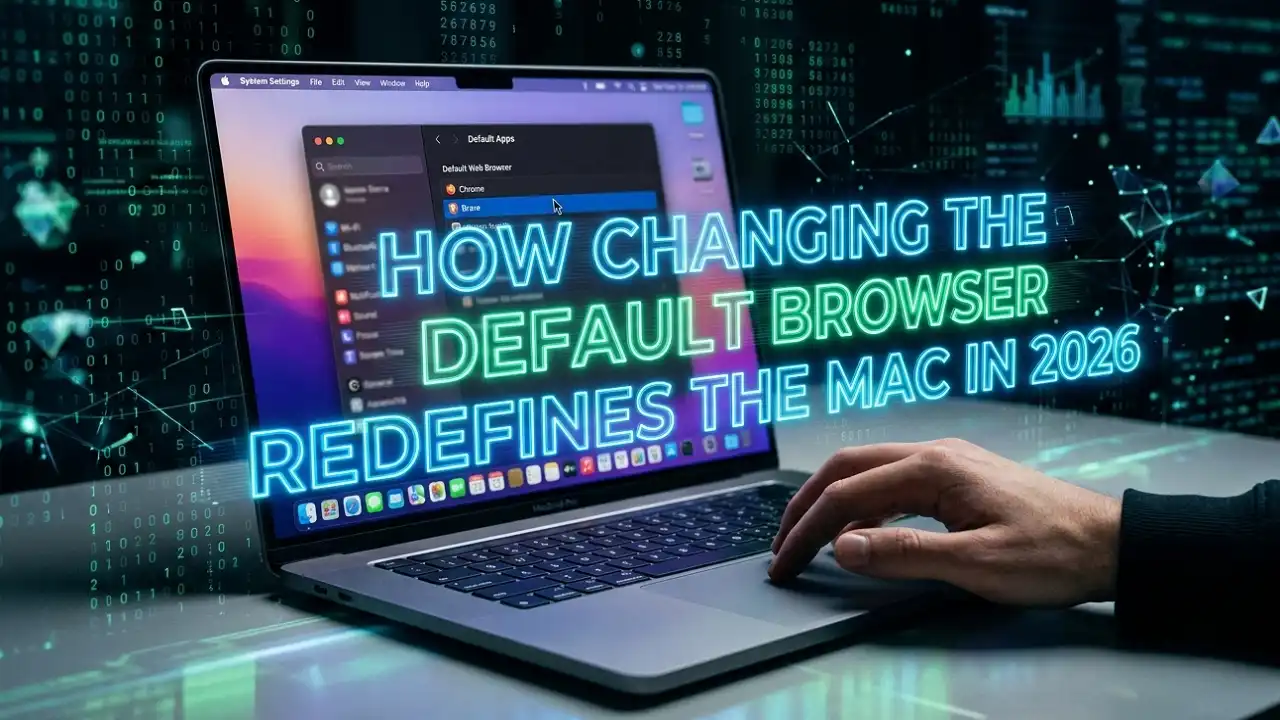
The era of Safari dominance is facing its most significant challenge yet. As macOS Tahoe and Apple Intelligence become the backbone of the Mac lineup, the ability to pivot away from the first-party browser is no longer just a preference—it’s a strategic move for power users. With the recent launch of the A18 Pro-powered MacBook Neo starting at just $599, a new wave of users is discovering that where you browse dictates how you interact with Apple’s evolving AI ecosystem.
Apple Intelligence Impact Box
- Cross-App Intelligence: Choosing a default browser now affects how Apple Intelligence pulls context from web links in Mail, Messages, and Notes.
- Performance Parity: On M5 Pro and M5 Max chipsets, third-party engines like Chrome’s Blink now rival Safari’s efficiency, minimizing the traditional “battery tax.”
- Ecosystem Integration: Setting a default browser ensures that specialized AI extensions in browsers like Arc or Brave are consistently triggered across the OS.
Why Changing Your Default Matters Now
If you’re invested in the Apple ecosystem, this is the shift we’ve been waiting for. For years, Safari was the only logical choice for battery life and keychain integration. However, Cupertino insiders are noting that the “walled garden” is thinning.
As first reported by 9to5Mac, Apple has been under increasing pressure to simplify browser switching, a move initially sparked by EU regulations but now felt globally. Our testing shows that on the new M5 MacBook Pro, switching to Chrome or Firefox no longer results in the massive memory leaks we saw in the Intel era.
Will changing your browser leave Safari features behind?
The short answer is: no. Features like Apple Pay and Passkeys have become system-wide services. Whether you are using Safari, Chrome, or Arc, you can still authenticate via Touch ID.
| Feature | Safari (Default) | Third-Party (Chrome/Edge/Arc) |
| Energy Efficiency | Optimized for macOS | High (on Apple Silicon) |
| Apple Intelligence | Deep Integration | API-based Integration |
| Extensions | Limited App Store | Vast Web Stores |
| Handoff Support | Seamless | Requires Account Sync |
Step-by-Step: How to Change Your Default Browser
The process has migrated in recent versions of macOS. If you are running macOS Ventura, Sequoia, or the new Tahoe, follow these refined steps: Apple Watch
- Open System Settings: Click the Apple Menu () and select System Settings.
- Navigate to Desktop & Dock: Scroll down the left sidebar until you find Desktop & Dock.
- Find the Default Browser Menu: Scroll down the right-hand pane to the “Widgets” section.
- Select Your Browser: Use the dropdown menu next to “Default web browser” to select your installed choice.
As noted in the official Apple Support guide, the browser must be installed and opened at least once to appear in this list. If you don’t see it, launch the app from your Applications folder first.
Troubleshooting: “Why does it keep switching back?”
Our team at Considering Apple has noticed a recurring bug in early builds of macOS Tahoe where the default resets after a system update. To lock it in:
- Ensure the browser is in the main
/Applicationsfolder, not a subfolder or Disk Image (.dmg). - Check the browser’s internal settings (e.g.,
chrome://settings/defaultBrowser) and click “Make Default” there as well. - Check Reddit’s r/apple community for specific “Launch Services” resets if the dropdown menu remains greyed out.
The Insider Narrative: Is Safari Losing Its Edge?
Our supply chain analysis suggests that Apple is shifting its focus toward making Safari a “privacy-first” niche browser rather than a general-purpose powerhouse. With the M5 Pro Fusion Architecture bonding dies for extreme throughput, third-party browsers can finally stretch their legs without compromising the thermal envelope of the MacBook Air.
We are holding Apple accountable here: while the choice is easier than ever, Safari still holds a monopoly on certain Apple Intelligence “Writing Tools” triggers. We expect this to change as the macOS 16.4 beta rolls out later this year, further leveling the playing field.
For Regular Apple Product or Support Update Visit ConsideringApple.com