



How to Configure Printer In Mac matters more this fall because macOS now handles most printers without any driver downloads. That shift saves you time, but only if you know where Apple moved the settings.
Key Takeaways
- AirPrint printers connect to a Mac in under two minutes with no extra software.
- All printer setup lives in System Settings > Printers & Scanners.
- USB, Wi-Fi, and IP connections each suit different home and office setups.
Why Does Printer Setup on Mac Matter Now?
Printer setup matters because Apple keeps pushing a driverless model. AirPrint is Apple’s built-in printing technology, and it removes the need for manufacturer drivers on most modern printers.
Our analysis suggests most setup trouble now comes from network issues, not missing drivers. If you’ve been following Apple ecosystem updates, this won’t come as a surprise. Check our latest Apple coverage for related macOS changes.
How to Login GMGlobalConnect On iPhone or Mac
Which Connection Type Should You Choose?
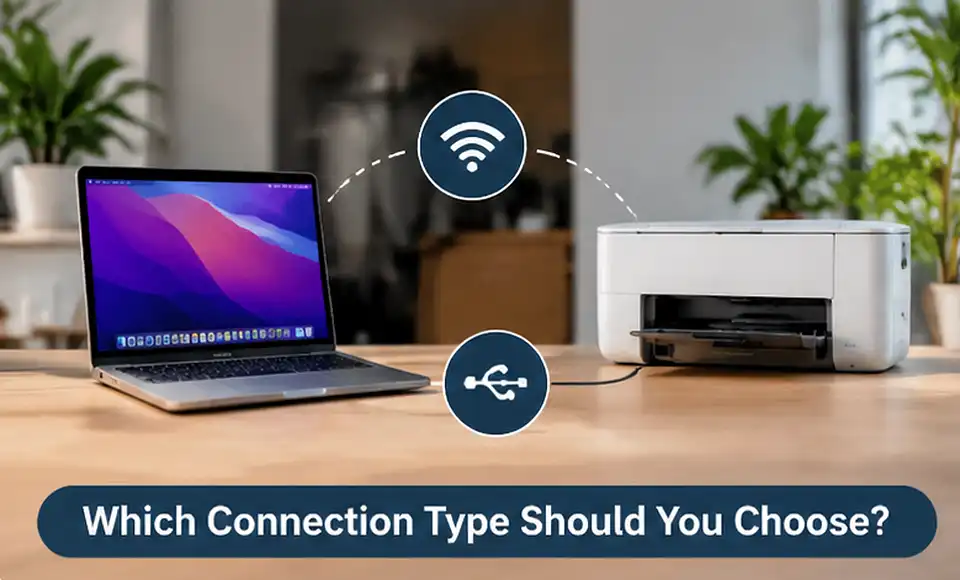
Your connection type depends on where and how you print.
We found that Wi-Fi with AirPrint works best for most homes.
| Connection Type | Best For | Setup Time | Driver Needed? |
|---|---|---|---|
| AirPrint (Wi-Fi) | Homes, small offices | About 1 minute | No |
| USB | Single desk setups | About 2 minutes | Sometimes |
| IP Address | Offices, shared printers | About 5 minutes | Sometimes |
| Bluetooth | Portable printers | About 3 minutes | Often |
Pick the row that matches your space, then move to the steps below.
How Do You Configure a Printer on Mac?
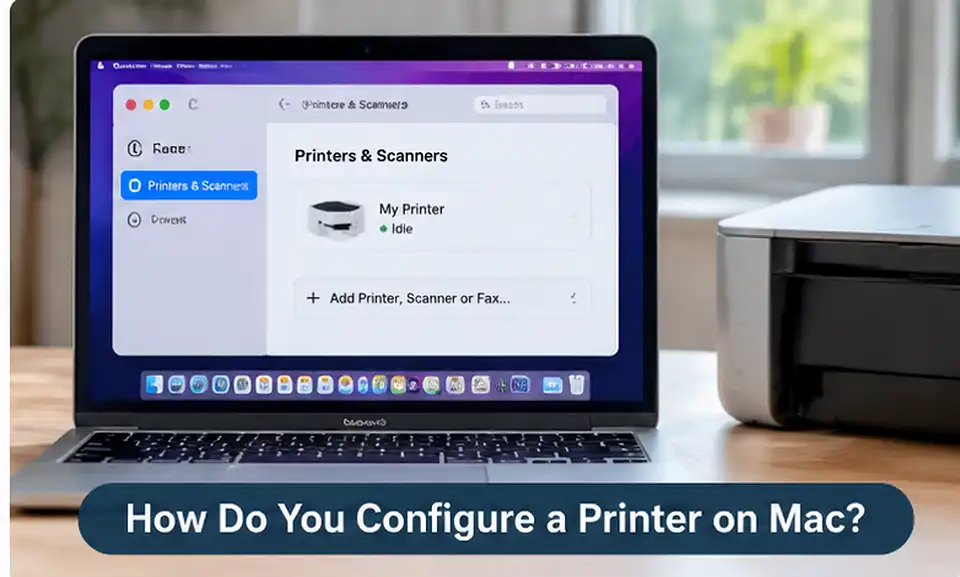
Configuring a printer on Mac takes six steps in System Settings.
Follow them in order for the cleanest result.
- Connect the printer. Join it to your Wi-Fi network or plug in the USB cable.
- Open System Settings. Click the Apple menu in the top-left corner.
- Select Printers & Scanners. Scroll down the sidebar to find it.
- Click Add Printer, Scanner, or Fax. A new window lists nearby devices.
- Choose your printer. Confirm that AirPrint or the correct driver appears under Use.
- Click Add. Print a test page to confirm everything works.
Apple’s own printer setup guide covers each screen in detail.
Comporium Webmail Login Process on iPhone or Mac
Which macOS Versions Support These Steps?
These steps apply to every Mac running macOS Ventura or later. Older versions use System Preferences instead of System Settings.
| macOS Version | Settings App | AirPrint Support |
|---|---|---|
| macOS Tahoe 26 and later | System Settings | Yes |
| macOS Sequoia 15 | System Settings | Yes |
| macOS Sonoma 14 | System Settings | Yes |
| macOS Ventura 13 | System Settings | Yes |
| macOS Monterey 12 | System Preferences | Yes |
Confirm your version under Apple menu > About This Mac before you start.
What If Your Printer Does Not Appear?
A missing printer usually signals a network mismatch. Our team observed this most often when Macs and printers sit on different Wi-Fi bands.
| Problem | Likely Cause | Quick Fix |
|---|---|---|
| Printer not listed | Different network | Join the same Wi-Fi |
| Prints blank pages | Old driver | Remove and re-add the printer |
| Queue stuck | Paused job | Clear the print queue |
| No AirPrint option | Unsupported model | Install the maker’s driver |
Apple keeps a current list of AirPrint-compatible printers worth checking first.
What Does This Mean for Apple Users?
Driverless printing means fewer downloads and fewer security risks for you. Industry insiders are noting that printer makers now design around AirPrint first, a trend The Verge tracks closely.
The same simplicity applies across devices. Our guides on iOS features, iPadOS tips, and iPhone settings show how Apple keeps setup consistent. For video calls on the go, read our latest guide on how to enable webcam on Safari iOS. Open Printers & Scanners today and run a test page to confirm your setup.