






How to Clear RAM on Mac: Simple Ways to Speed Things Up
→ Mac Screen Purple Lines: What’s Causing Them and How to Fix the Problem
Your Mac has been running for hours. Tabs are stacking up, apps are multiplying in the dock, and everything feels just a little slower than it should. Before you start blaming your machine, the culprit is probably RAM. Specifically, too much of it being used at once.
→ How to Book an Apple Genius Bar Appointment (And Actually Get the Slot You Want)
macOS is genuinely good at managing memory on its own, but it has limits. Long sessions, heavy applications, and browser tabs that never get closed will eventually push things past the point where the system can quietly sort itself out. When that happens, you start to notice.
This guide walks you through how to check what is actually happening with your memory, clear RAM on your Mac using built-in tools, and keep things running smoothly going forward.
How to Know if RAM Is Actually the Problem
Before doing anything, it is worth confirming that memory is what is slowing you down. macOS gives you a straightforward way to check.
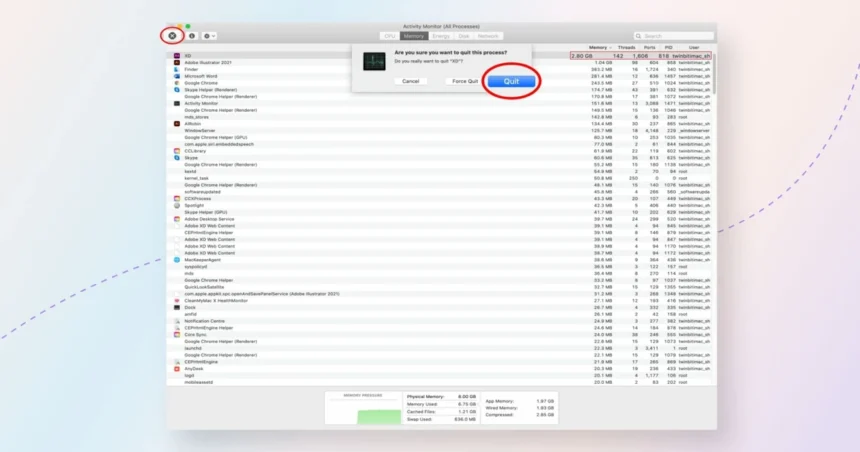
Open Activity Monitor by searching for it in Spotlight (Command + Space, then type “Activity Monitor”). Click the Memory tab at the top. You will see a list of every running process and how much memory each one is consuming.
At the bottom of the window, look for the Memory Pressure graph. This is the most honest indicator of your situation:
- – Green means your Mac has plenty of available memory and is handling things fine.
- – Yellow means memory is getting tight, but macOS is managing.
- – Red means you are genuinely running low, and performance is likely suffering.
If the graph is red or a deep orange, clearing RAM will make a real difference. If it is comfortably green, the slowdown you are experiencing probably has another cause.
The Fastest Fix: Quit What You Are Not Using
This sounds obvious, but it is the most effective thing you can do. Many people minimize apps rather than quitting them, which means those apps keep running and consuming memory in the background.
Go through your dock and right-click any app you are not actively using. Select Quit. Do the same for browser tabs. A single Chrome or Firefox tab can use more memory than a full desktop application, and having thirty of them open quietly drains your system.
If an app is frozen and will not close normally, go back to Activity Monitor, find the process in the list, select it, and click the X button in the top-left corner of the window. Choose Force Quit. This will close the app immediately and free up whatever memory it was holding.
Restart Your Mac
A restart clears everything. RAM is wiped completely when your Mac shuts down and boots back up, and you get a clean slate. If you have not restarted in days or weeks, this alone will often solve the problem.
Go to the Apple menu in the top-left corner and select Restart. Save anything you need first, let the machine reboot, and you will likely notice the difference immediately.
Clear RAM from the Terminal
If you want to free up memory without restarting, macOS has a built-in Terminal command that purges inactive memory. This is memory that macOS is holding onto just in case an app needs it again, but which could be freed up right now.
Open Terminal (search for it in Spotlight), then type the following command and press Enter:
You will be asked for your administrator password. Type it in and press Enter again. The command runs silently and takes a few seconds. When it finishes, check Activity Monitor again and you should see a drop in memory usage.
This is safe to run, but it is worth knowing that macOS will start reclaiming inactive memory on its own shortly after. The purge command just speeds up that process manually.
Manage Login Items and Background Processes
A lot of RAM gets consumed before you even open your first app, because programs set themselves to launch automatically at startup. Over time, this list grows without you noticing.
To review it, go to System Settings, then General, then Login Items. You will see two sections: apps that open at login, and background items that run silently. Go through both lists and remove anything you do not need running from the moment your Mac starts. The fewer processes competing for memory at startup, the more headroom you have for the things you actually want to do.
A Word on Third-Party RAM Cleaners
There are plenty of apps that promise to “optimize” or “clean” your Mac’s memory with one click. Most of them do what the Terminal purge command does, wrapped in a nicer interface, and often with a price tag attached.
macOS is built to manage memory intelligently. Aggressively clearing RAM too often can actually slow things down temporarily, because the system then has to reload data it had cached for a reason. These apps are rarely worth paying for, and some of the less reputable ones carry their own risks.
Stick to the built-in tools. They give you everything you need.
When Clearing RAM Is Not Enough
If your Memory Pressure graph is consistently red, even after quitting apps and restarting, you may simply not have enough RAM for the way you use your Mac. This is especially common on machines with 8GB of unified memory running multiple demanding applications.
In that case, clearing RAM is a temporary fix, not a real solution. Upgrading to a Mac with more memory, or being more deliberate about which apps you run simultaneously, is the more honest answer.
For most people, though, a combination of regular restarts, quitting unused apps, and keeping an eye on Activity Monitor is enough to keep things running the way they should.
Relevant posts
- How to Change the Apple Maps Voice (And Make It Sound the Way You Want)
- How to Change Your Apple ID Country or Region (Without Losing Your Stuff)
- iPhone XS Max IMEI Number: How to Find It, Check It, and Why It Matters
Visit consideringapple.com for more stories.