


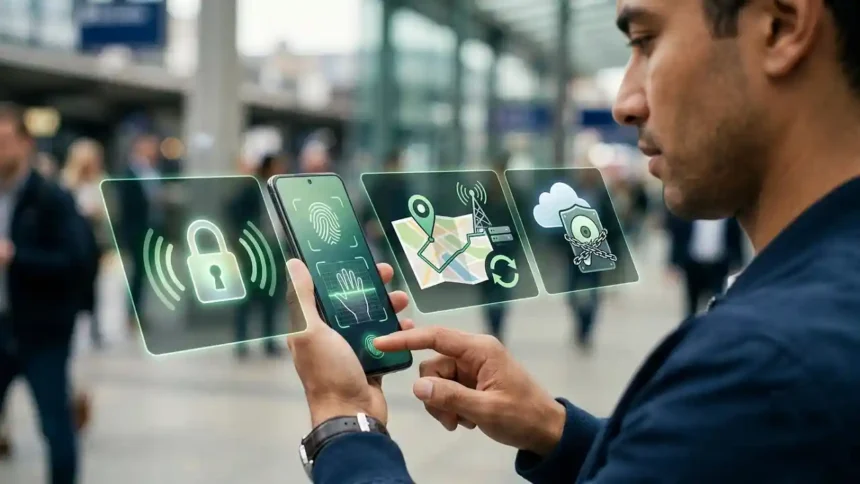
Apple’s latest iOS update introduces an important new security feature called Stolen Device Protection. This provides enhanced safeguards in case your iPhone gets stolen by someone who knows your passcode.
Enabling Stolen Device Protection is simple, but first you need to ensure your device meets the requirements. Here is a step-by-step guide on how to set up and use this feature effectively.
ICloud Login Changes Are Altering Your Apple Ecosystem
Prerequisites to Use Stolen Device Protection
To use Stolen Device Protection on your iPhone, you must:
- Update to iOS 17.3 or later
- Turn on Two-Factor Authentication for your Apple ID
- Set a passcode on your iPhone
- Enable Face ID or Touch ID
- Have Find My enabled
- Allow Significant Locations for location tracking
Apple Vision Pro : Triggers a Massive 2026 Shakeup
Once these requirements are met, you can turn on the feature.
How to Turn on Stolen Device Protection
To enable Stolen Device Protection:
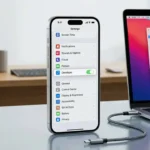
- Open the Settings app on your iPhone
- Tap on Face ID & Passcode
- Enter your passcode when prompted
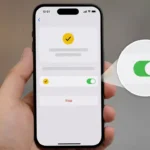
- Scroll down and tap to turn on Stolen Device Protection
The feature will now be enabled and providing additional security for your device.
How Stolen Device Protection Safeguards Your iPhone
When turned on adds extra authentication steps to perform sensitive actions on your iPhone. This applies when the device detects it is away from your familiar locations.
Aapple TV f1 : Changing Apple In 2026

Actions requiring additional security include:
- Accessing saved passwords
- Using payment methods saved in Safari
- Turning off Lost Mode
- Erasing content and settings
- Changing Apple ID password
- Updating Apple ID security settings
- Disabling Find My
The safeguards involve:
- Requiring Face ID/Touch ID authentication
- Enforcing a 1-hour security delay before subsequent actions
This prevents thieves from accessing your personal data or making changes if they steal your passcode-locked iPhone.
Apple Raises Prices : Why It Changes the Ecosystem
How to Turn Off Stolen Device Protection
- Go to Settings => Face ID & Passcode
- Enter your passcode
- Scroll down and tap Turn Off Protection
If your iPhone detects you are not in a familiar location, you will need to complete the security delay process before disabling the feature. This requires waiting an hour after initial biometric authentication.
Enabling this provides important additional security for your iPhone. Use this guide to easily set up and manage this new feature in iOS 17.3.
Apple's latest iOS update introduces an important new security feature called Stolen Device Protection. This provides stolen by someone who knows your passcode.https://t.co/GtO6Xiq4dZ@AppleTV @AppleSupport @Dr_iPh0ne @icloudzone @AppleBCommunity
— Considering Apple (@consider_apple) June 30, 2026