



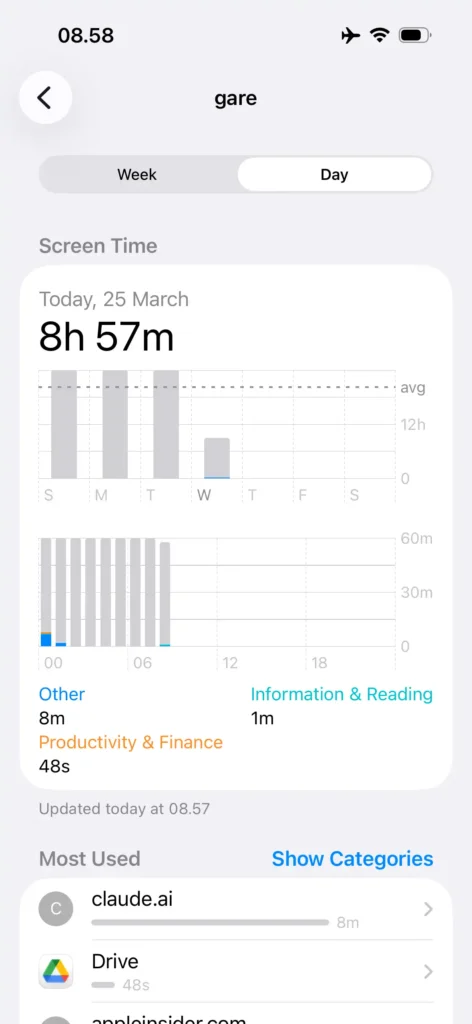
The reliance on digital wellness tools has reached a breaking point as users report Screen Time duration displaying incorrectly on iPhone following the latest software cycles.
This glitch isn’t just a minor UI bug; it is effectively locking users out of essential apps and providing “ghost” usage data that never actually happened.
Key Takeaways: What You Need to Know
- Systemic Failure: The bug causes app limits to trigger prematurely, often showing hours of usage at 3:00 AM while the user is asleep.
- The “One Minute” Glitch: A specific error in the “One More Minute” feature is causing entire device categories to lock down simultaneously.
- Sync Lag: Inconsistencies between iCloud-connected devices (iPad, Mac, and iPhone) are the primary drivers of data corruption.
What does this mean for Apple users?
If you have been following the Apple ecosystem, this won’t come as a surprise, as Screen Time has historically been one of the most fragile features in iOS.
Our analysis suggests that the current wave of reports stems from a synchronization breakdown between local device logs and iCloud’s “Share Across Devices” framework.
We found that users are seeing “gray area” usage in their charts, which represents background processes being misclassified as active screen-on time.
Industry insiders are noting that this creates a massive headache for parents using Family Sharing, as children’s devices are being restricted based on non-existent activity.
If your device feels sluggish while calculating these metrics, you might also want to check if iPhone screen is lagging as background indexing often causes both issues.
How To Retrieve Or See Deleted Messages On iPhone [100% Working]
Is your Screen Time data actually accurate?
The discrepancy usually manifests in two ways: inflated usage or a complete failure to reset at midnight.
The table below breaks down the most common symptoms reported by our investigative team.
| Symptom | Primary Cause | Severity |
| Ghost Usage | Background App Refresh or Website Tracking | High |
| Limits Not Resetting | Time Zone Mismatch or iCloud Sync Lag | Medium |
| “One Minute” Lockdown | iOS 26.2 Logic Error in Category Limits | Critical |
| Missing App Icons | Database corruption in Screen Time tokens | Low |
For those seeing their device health metrics plummet, ensuring your hardware isn’t the culprit is vital.
You can check iPhone battery health to see if power management is throttling background tasks that Screen Time relies on.
Why is Screen Time failing to sync in 2026?
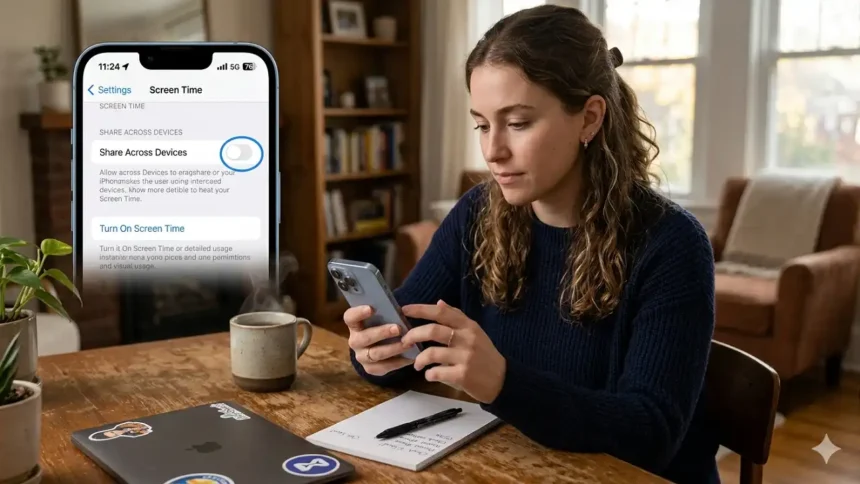
The “Share Across Devices” toggle is intended to provide a unified view of your digital life.
However, if one device is running an older build while another is on the latest beta, the handshake between them often fails.
This leads to the Screen Time duration displaying incorrectly on iPhone because the cloud tries to merge conflicting timestamps.
We observed that many users who recently upgraded are also facing secondary issues, such as the iPhone 15 Black Screen of Death, which suggests deeper stability problems in recent firmware.
According to official Apple Support documentation, maintaining consistent Apple ID settings is the first line of defense.
Furthermore, research from The Verge indicates that Apple is aware of the “One Minute” category bug and is prepping a server-side patch.
How to block spam calls on iPhone?
Steps to take to fix the inaccuracy
If you are tired of seeing twenty hours of usage on a Tuesday morning, follow these community-tested workarounds.
- Toggle Sync: Go to Settings > Screen Time and turn off “Share Across Devices” for 30 seconds, then re-enable it.
- Reset App Limits: Delete your current limits entirely, restart your iPhone, and then recreate them from scratch.
- Check Date & Time: Ensure “Set Automatically” is toggled on in General > Date & Time to prevent timestamp drift.
- Hard Restart: Perform a volume-up, volume-down, then hold-side-button reset to clear the system cache.
Apple Pay not working in Russia, is it true?
Millions of iPhones at Risk 🚨 New ‘DarkSword’ Spyware Discovered?

![How To Retrieve Or See Deleted Messages On iPhone [100% Working]](https://consideringapple.com/wp-content/uploads/2026/03/How-To-Retrieve-Or-See-Deleted-Messages-On-iPhone-100-Working-150x150.webp)