



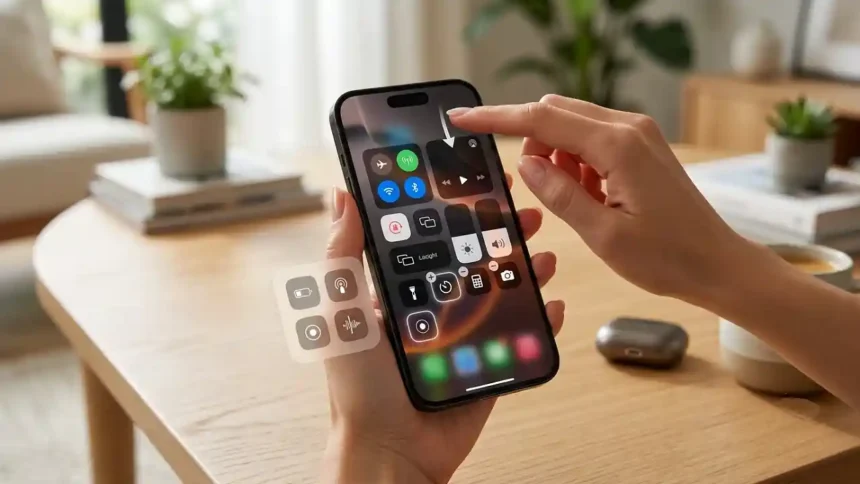
The Control Center on Apple Vision Pro gives you quick access to useful controls and features like search, volume, notifications, and more. Here is how you can open Control Center and customize it to suit your needs:
What Is Love and Deepspace iOS and How to Use It
Open Control Center
To open Control Center on your Vision Pro:
- Look up towards the top of your view. You should see a down arrow icon appear.
- Tap near the icon to open Control Center.
The Control Center will then slide down from the top, allowing you to access various controls.
Note: The position of the Control Center icon may vary depending on what you are currently doing in Vision Pro. If you don’t see the icon, keep your head still and look towards the top until it appears.
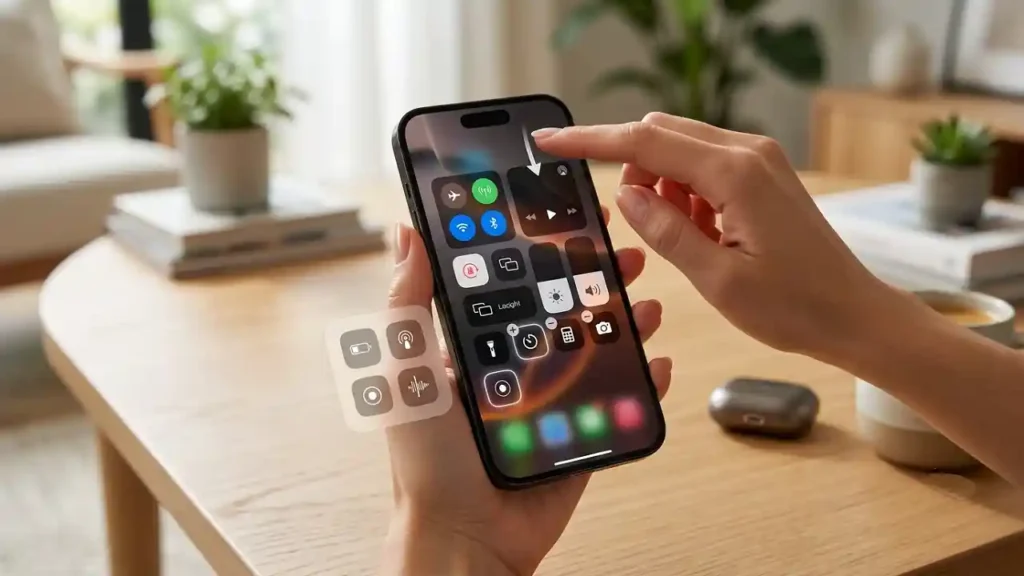
Customize Control Center Position
You can customize how high or low the Control Center icon appears when you look up:
- Go to Settings => Control Center
- Use the slider under Control Center Position to set how high or low you want the icon to appear when looking up
Setting the icon position lower means you don’t have to strain your neck looking too high up to open Control Center.
How to Remove Add and Remove Controls
Vision Pro allows you to customize which controls appear in your Control Center:
- Go to Settings => Control Center
- Under Include, tap the green + icon next to any control you want to add, like Flashlight, Travel Mode, etc.
- To remove a control, tap the red – icon next to it
- Use the handles on the right to drag controls up or down to reorder them
Pro Tip: Add controls like Guest User and accessibility features you use often for quick access.
How to Download JP Dokkan on iOS
Interact with Control Center
Interacting with Control Center on Vision Pro uses natural hand gestures:
- Tap on icons and controls to select them
- Pinch two fingers together or apart to scroll up/down the Control Center view
- Drag icons like volume and brightness left/right to adjust
Vision Pro maps your hand movements precisely in 3D space, making the experience intuitive.
Customize Look and Feel
You can customize the look and feel of Control Center:
- Go to Settings => Control Center
- Choose between Light, Dark or Auto themes
- Adjust text size
- Enable Bold Text for improved legibility
The Auto theme automatically shifts between light and dark modes based on ambient light levels.
How to Enable Webcam on Safari iOS
Key Control Center Features
Some of the most useful Control Center features on Vision Pro include:
- Notifications – Quickly access notifications from apps and contacts
- Now Playing – Control audio/video playback in apps
- Guest User – Let others try your Vision Pro with access controls
- Travel Mode – Disable features during flights per airline rules
- Accessibility Shortcuts – Enable accessibility features like VoiceOver instantly
The Control Center on Apple Vision Pro gives you quick access to useful controls and features like search, volume, open Control Center and customize it to suit your needs:https://t.co/e3lCPjcSYX@AppleTV @AppleSupport @tim_cook @AppStore @mrvarunkumar011
— Considering Apple (@consider_apple) July 7, 2026
Opening and customizing Control Center on Apple Vision Pro is quick and intuitive using natural hand gestures. Add your most used controls for fast access, customize the look and feel, and leverage handy features like Guest User.