



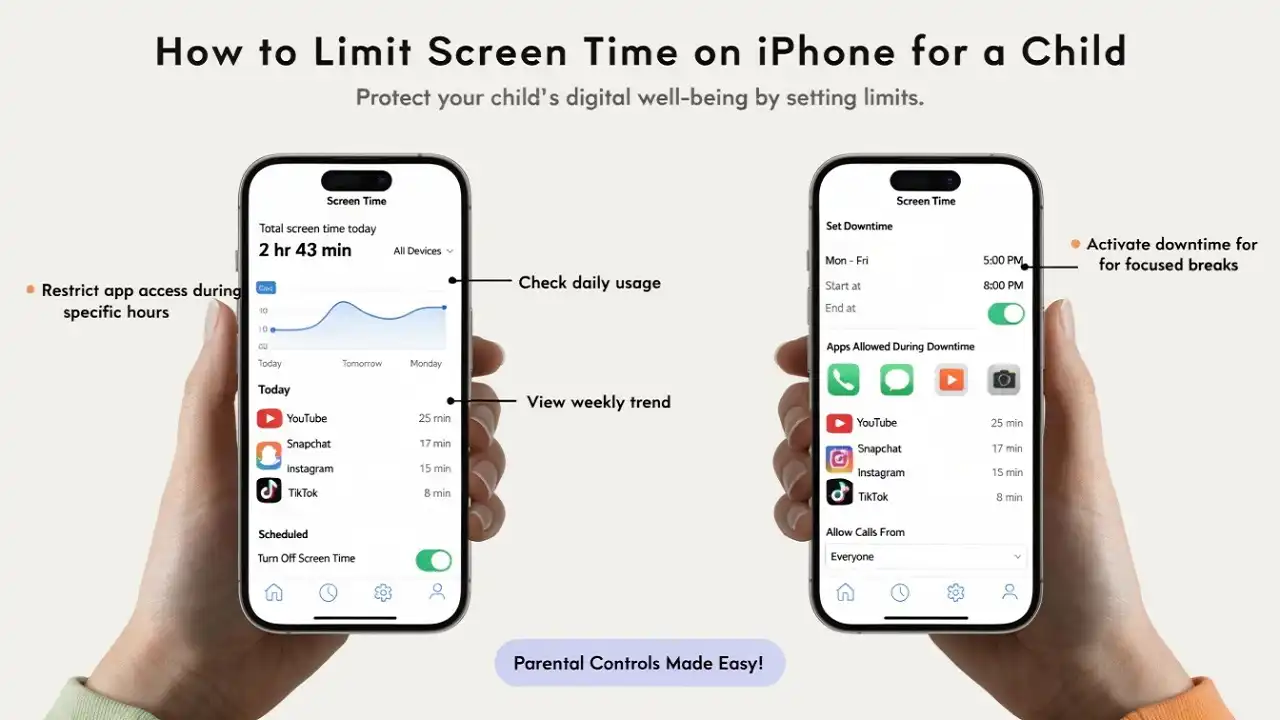
By adding a limit to apps in Screen Time on iPhone, parents can control the usage of specific apps on kids’ iPhones. Once parents set the time limit, the kid will no longer access those apps.
So if your kid is excessively using Instagram, TikTok, or another social media app, then it would be best to add apps limiting screen time on iPhone to restrict the use.
Let’s set up Apple screen time parental control on iPhone without further ado.
How To Add Limit Screen Time on App On iPhone For Kids
Note: We tried these steps on iOS 15 running iPhone.
How To Turn On Screen Time On iPhone
- Open Settings app.
- Tap on Screen Time.
- Next, tap on Continue.
- Now choose My or This Is My Child’s
How To Set Screen Time Passcode
If you are using Family Sharing to manage your child’s device, you can set Screen Time passcode with the help of the below steps:
- Go to the Settings app.
- Scroll down and select Child’s name under Family.
- Next, turn on Screen Time.
- Tap Continue.
- Now you can set up Downtime, App Limits, and Content & Privacy with the limitations.
- After that, tap pan Use Screen Time Passcode.
- Now enter the Passcode.
- You need to re-enter the passcode to confirm.
- Enter Apple ID and Password.
- That’s it.
Even if you are not using Family Sharing to control your kid’s device, you can still set up Screen Time on your kid’s iPhone with the help of the following steps.
Move To iOS Transfer Error: How To Fix It
How To Set Up Screen Time On iPhone for Kid Without Family Sharing
- Get Kid’s iPhone.
- Go to Settings and tap Screen Time.
- Tap on Turn On Screen Time.
- Tap on Continue.
- Tap on This Is My Child’s Device.
- Now you need to set Downtime, App Limits, and Content & Privacy with the limitations for specific apps.
- After that, tap on Use Screen Time Passcode and enter the Passcode.
- You need to Re-enter the Passcode to confirm.
- In the end, enter Apple ID and Password.
- Done.
After learning how to use Screen Time for kids on iPhone, you do not have to use any third-party apps or keep your eyes 24 hours on your kid’s iPhone take control, and it will be easy with iPhone’s Screen Time feature.
Even after reading this article, you can ask through the comment box if you still need any tips.